


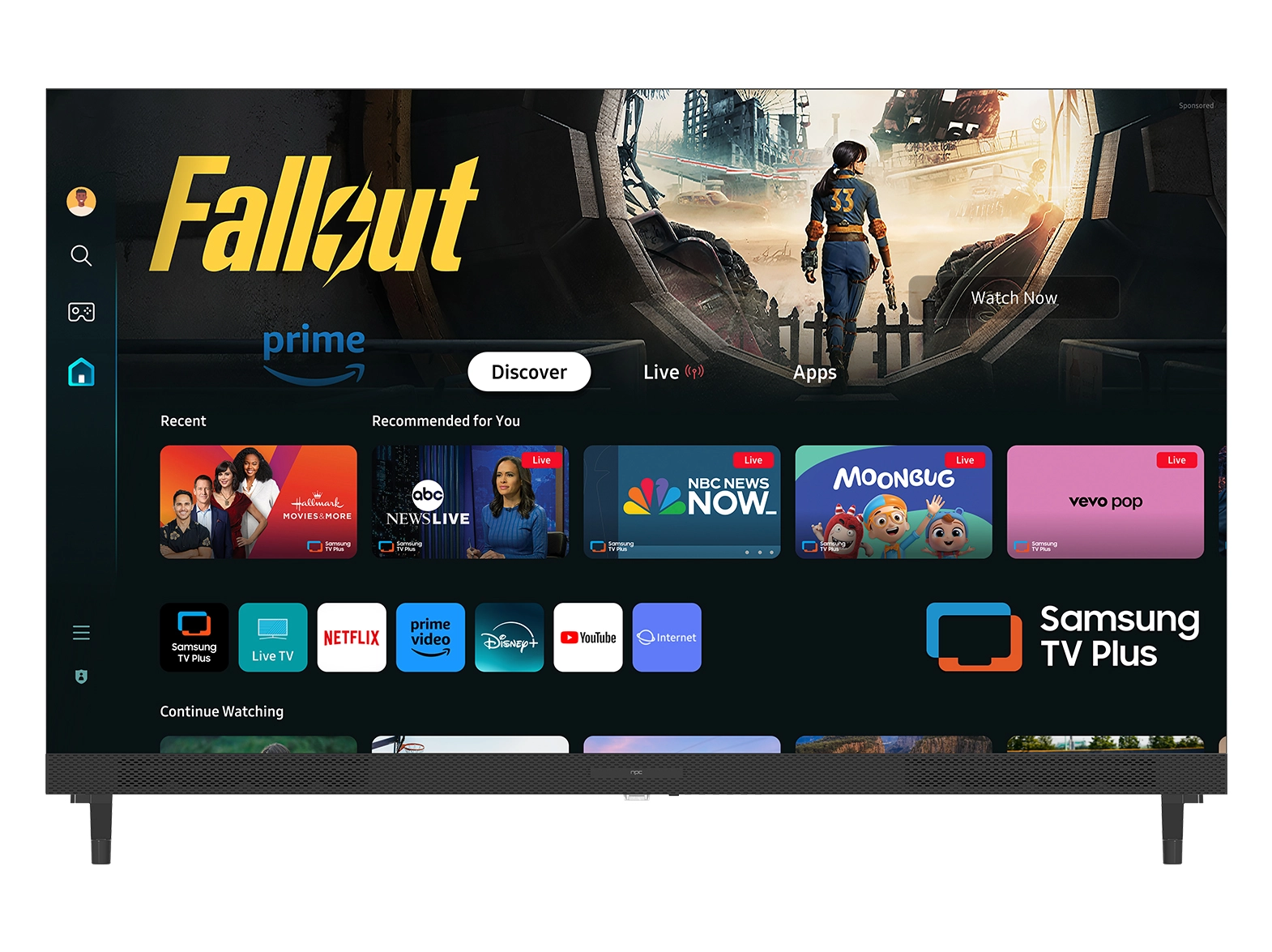


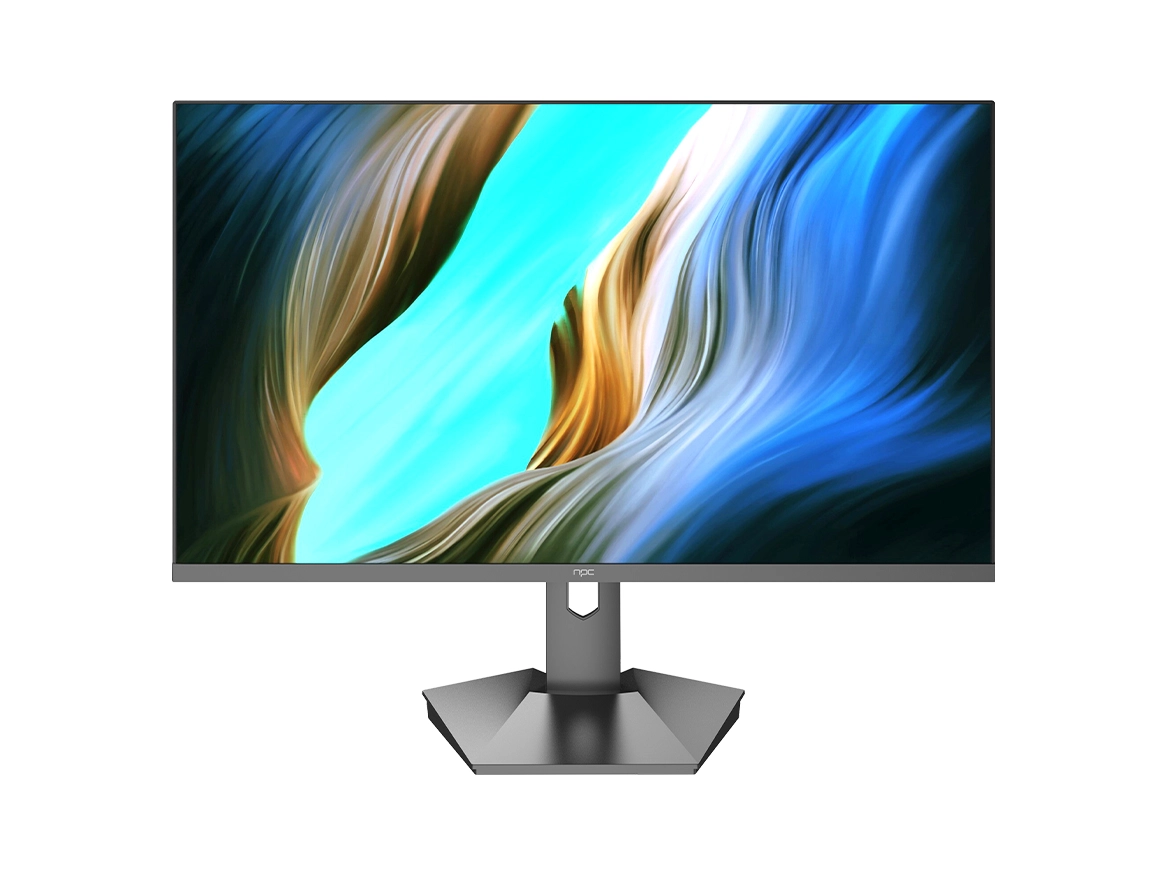


A smart monitor with LG webOS runs Netflix, YouTube, and cloud games the moment you plug it in and connect to Wi-Fi—no PC, no streaming stick, no extra cables. This guide walks through the setup process step by step, covers five things you can do without a computer, and helps you pick the right screen size for your space.

What Makes a Smart Monitor Different from a Regular Monitor?
The key difference is one word: operating system. A regular monitor is a passive display—it only shows what a connected PC or laptop sends to it. A smart monitor has its own built-in OS (in NPC’s case, LG webOS), which means it can connect to Wi-Fi independently, run streaming apps, play cloud games, and pair Bluetooth devices without any external computer.
This category is growing quickly. The global smart display market was valued at USD 8.2 billion in 2024 and is projected to reach USD 33.4 billion by 2033, expanding at a compound annual growth rate (CAGR) of 16.8%.[1] webOS alone accounts for roughly 16% of the global smart TV platform market share,[2] which means a large app ecosystem and regular software updates.
When you do connect a PC via HDMI, the smart monitor functions as a standard external display. So it is not a replacement or a regular monitor—it is both.
How Do You Set Up a Smart Monitor Without a PC?
The entire process takes under 5 minutes. Here is the sequence:
Step 1: Plug in and power on. Connect the power cable—that is the only cable you need. The smart monitor boots directly into the webOS setup wizard.
Step 2: Connect to Wi-Fi. Select your network from the on-screen list and enter the password using the remote control. The monitor supports Wi-Fi 5 (802.11ac) or Wi-Fi 6, depending on the model.
Step 3: Sign in to your webOS account. This unlocks the LG Content Store, where you can download additional apps beyond the ones pre-installed.
Step 4: Log in to your streaming apps. Netflix, YouTube, Disney+, Apple TV, and Spotify come pre-loaded. Open each app and sign in with your existing account credentials.
Step 5: Pair Bluetooth devices. Go to Settings > Bluetooth and pair your headphones, keyboard, or game controller. Bluetooth 5.0+ ensures stable connections with latency low enough for cloud gaming.
Step 6: Adjust picture settings. Under Settings > Picture, choose a preset that matches your room lighting. “Standard” works for most well-lit rooms; “Cinema” reduces blue light and lowers brightness for dark environments.

What Can You Do Without a PC?
A smart monitor without a PC is not a compromise—it is a deliberate setup that covers five common use cases.
1. Stream movies and shows. Netflix, YouTube, Disney+, and Apple TV run natively on webOS. Content loads directly from the app—no casting lag, no phone dependency. A 32-inch 4K model (3840×2160) at typical desk distance (60–80 cm) delivers a pixel density of roughly 138 PPI, which means individual pixels are invisible to the eye.
2. Play cloud games. NPC smart monitors include a built-in “Play all cloud games” function that provides access to cloud gaming platforms directly through webOS. Pair a Bluetooth controller, and the monitor becomes a console-free gaming station. The 100 Hz refresh rate on NPC models keeps gameplay visually smooth.
3. Mirror your phone screen. AirPlay (iOS) and Miracast (Android) let you wirelessly project photos, presentations, or video from your phone to the monitor. This is useful for showing travel photos on a larger screen or running a quick presentation in a meeting room.
4. Listen to music and podcasts. Spotify runs as a standalone app on webOS. The monitor’s built-in speakers handle background music for a kitchen or bedroom, and Bluetooth output lets you route audio to external speakers for louder playback.
5. Use it as a smart home dashboard. Display your calendar, weather, and smart home controls on screen when the monitor is idle. With webOS’s always-on ambient mode, the monitor can serve as a central information hub in a living room or hallway.
Which Screen Size Should You Choose?
The right size depends on where the monitor will sit and how far away you will view it from. Here is a practical breakdown:
Size | Resolution | Best Placement | Ideal For |
23.8”–25” | FHD (1920×1080) | Dorm desk, kitchen counter, bedside table | Close-range streaming, secondary screen |
27” | FHD (1920×1080) | Bedroom, home office | Dual-use: PC monitor by day, streaming by night |
32” | 4K UHD (3840×2160) | Living room, wall-mounted entertainment | Primary media screen, cloud gaming |
50” | 4K UHD (3840×2160) | Living room, wall-mounted | Full TV replacement at desk-friendly PPI |
One rule of thumb: if you are sitting within arm’s reach (under 80 cm), 27 inches or smaller avoids excessive head movement. If the monitor is mounted on a wall at 1.5–2 meters viewing distance, 32 inches or 50 inches provides a more immersive experience without visible pixelation at 4K resolution.
Smart Monitor vs. Smart TV: When Should You Choose Which?
Both run webOS and access the same app library, so the software experience is identical. The difference is physical.
A smart monitor offers desk-friendly sizes (24”–50”), higher pixel density at close viewing distances, and doubles as a PC display via HDMI. A smart TV starts at 32” and scales up to 100”+, includes room-filling speakers, and is optimized for couch-distance viewing (2–4 meters).
Choose a smart monitor if: the screen will sit on a desk or kitchen counter, you want to use it as a PC monitor during work hours, or you need a compact entertainment screen for a small room. Choose a smart TV if: the screen goes in a living room at 2+ meters away, you want built-in tuner support for broadcast TV, or you need a 55”+ display.

Getting Started
A smart monitor is the most flexible display you can own: it streams content independently, doubles as a PC monitor, and fits spaces where a full-sized TV would be too large. The setup takes under 5 minutes, requires zero technical knowledge, and the webOS app ecosystem covers streaming, gaming, music, and screen mirroring out of the box.
NPC’s smart monitor lineup ranges from 24 to 50 inches, with FHD and 4K UHD options across the range. Explore the full selection on the NPC Smart Monitor product page, or contact NPC Electronics for bulk and business inquiries.
References
[1] IMARC Group. Smart Display Market: Global Industry Trends, Share, Size, Growth, Opportunity and Forecast 2025–2033. IMARC Group, 2024, imarcgroup.com/smart-display-market.
[2] Market Growth Reports. Smart TV Platforms Market Size & Industry Analysis [2035]. Market Growth Reports, 2025, marketgrowthreports.com/market-reports/smart-tv-platforms-market-114178.


