

Most people track GPU and CPU wattage when buying hardware. The display — which runs as many hours per day as the rest of the system — gets far less attention. A monitor drawing 40 watts for ten hours a day generates roughly 146 kWh per year, and most desks have more than one screen plugged in. From office monitors to smart displays, the choice of hardware also determines how much power you consume.
This article breaks down monitor power consumption tips with real wattage numbers, explains where the hidden draw comes from, and lists changes you can make today without buying anything new.
How Much Electricity Does a Monitor Use?
Monitor power draw is determined by panel size, resolution, and backlight technology. The U.S. Environmental Protection Agency (EPA) publishes measured on-mode power figures through its ENERGY STAR program for certified displays:1
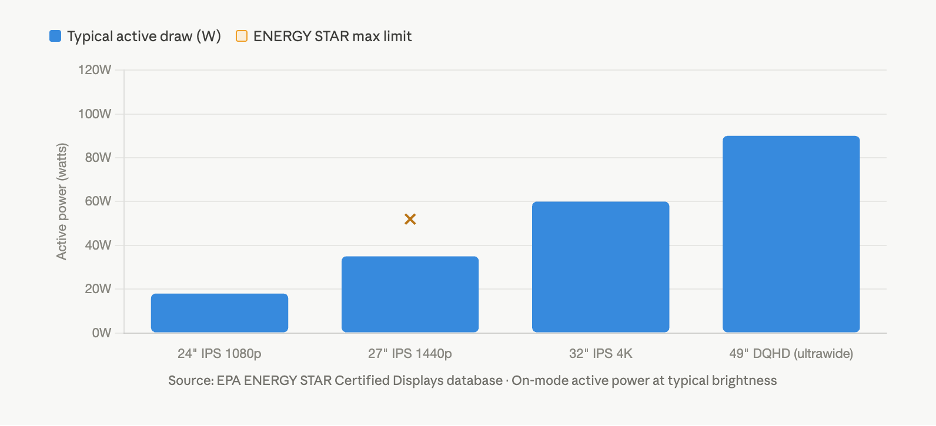
A 24-inch IPS display at 1080p draws approximately 12–25 watts in active use.1
A 27-inch IPS display at 1440p draws approximately 25–45 watts. For reference, one ENERGY STAR-certified 27-inch model measured 24.25 watts on-mode; a less efficient model of the same size drew 45 watts or more.1
A 32-inch panel at 4K draws 50 watts or more under typical conditions.
Standby power is not zero. The ENERGY STAR specification requires certified monitors to draw no more than 0.5 watts in sleep mode.1 Older or non-certified displays can draw up to 1–2 watts continuously in standby, sustained 24 hours a day, 365 days a year.
At the U.S. average residential electricity rate of 17.45 cents per kWh (2025 data via EIA),2 a 40-watt monitor running 10 hours per day costs approximately $25.50 per year in electricity. Two monitors double that cost before factoring in the rest of the desk setup.
Your PC Is Part of the Energy Equation
Screen power is one input. The full desk draw includes the PC, peripherals, and anything else plugged in.
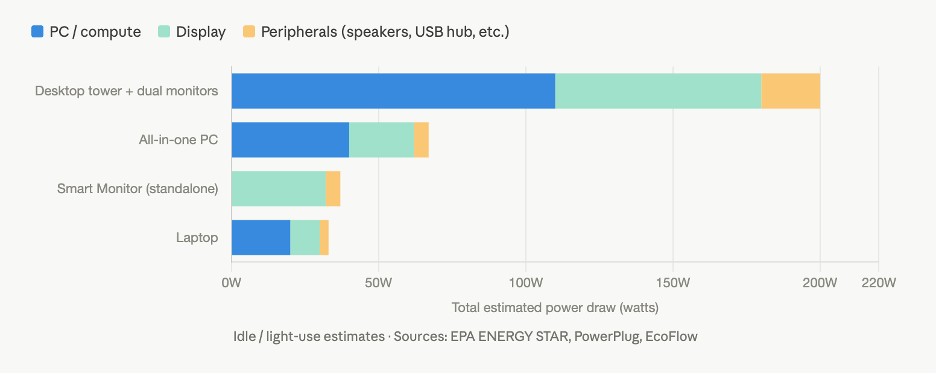
An idle desktop PC draws 50–100 watts, depending on hardware generation and configuration.3 Adding a discrete GPU at idle contributes another 10–30 watts. Each connected monitor is an active render target: the GPU outputs frames to every display simultaneously, even when the displays are showing a static desktop.
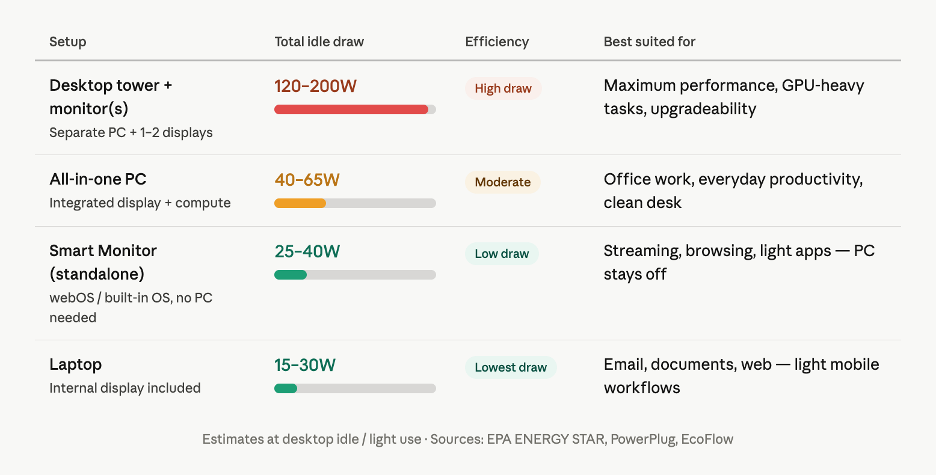
A laptop at idle, including its internal display, draws 15–30 watts total.4 The gap between a laptop and a desktop tower — sustained over a full working day — is measurable on an electricity bill.
Sleep mode reduces total system draw to approximately 3–5 watts, representing a roughly 95% reduction from idle.3 Hibernate achieves near-zero by writing system state to disk and cutting power entirely.
Eight Practical Ways to Reduce Screen Energy Use
These changes require no new hardware and can be implemented in under ten minutes:
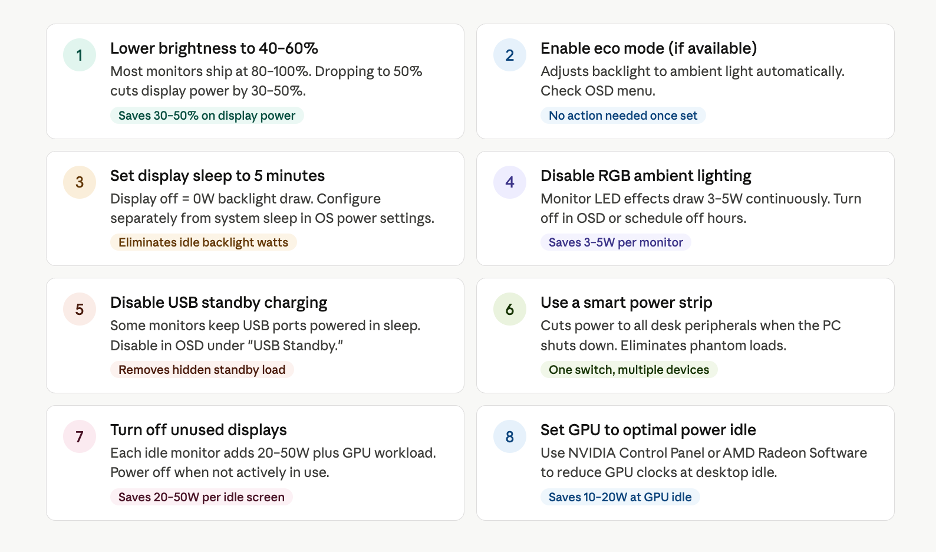
1. Lower display brightness to 40–60%. Most monitors ship at 80–100% brightness. Reducing brightness from maximum to 50% cuts the display’s power draw by 30–50%.5 For most indoor environments, 50–60% is comfortable throughout a full workday.
2. Enable eco mode if available. This setting adjusts backlight intensity based on ambient light. Check the monitor’s on-screen display (OSD) menu. Not all models include it, but where present it reduces power draw automatically without manual adjustment.
3. Configure display and system sleep timers separately. In Windows (“Power & Sleep” settings) and macOS (“Energy Saver” / “Battery”), display sleep and system sleep are independent controls. Set the display to turn off after 5 minutes of inactivity. A powered-off monitor draws zero watts from its backlight.
4. Disable RGB ambient lighting when not in use. Monitor backlighting effects draw 3–5 watts continuously. Most OSD menus include an option to disable ambient LEDs entirely or on a schedule.
5. Disable USB power delivery in standby. Some monitors keep USB ports active during standby to charge phones or power peripherals. Disabling this in the OSD removes the standby load. The setting is typically labeled “USB Standby” or “USB Charging.”
6. Use a smart power strip. Smart strips cut power to peripheral outlet clusters when the primary device (usually the PC) powers down. This eliminates phantom loads from the monitor, speakers, external hard drives, and USB hubs without requiring manual unplugging.
7. Turn off unused displays. Each connected monitor adds 20–50 watts of draw plus additional GPU workload. A second monitor used only for passive monitoring does not need to stay on all day. Powering it off when not actively in use is the simplest immediate reduction.
8. Check GPU idle power management settings. Some discrete GPUs remain in high-performance idle states when driving multiple monitors or high-refresh-rate displays. NVIDIA Control Panel and AMD Radeon Software both include power management modes that allow the GPU to reduce clock frequencies at desktop idle. Setting this to “Optimal Power” or equivalent typically reduces idle GPU draw by 10–20 watts.
Hardware Choices That Reduce Long-Term Energy Use
For users already planning a hardware refresh, total system power draw is a factor worth weighing alongside performance specifications.
All-in-one PCs
An all-in-one (AIO) computer integrates the display, processor, memory, and storage into a single unit. Typical AIO power draw is 40–65 watts for the entire system.3 A desktop tower plus a separate monitor draws 120–200 watts combined at idle. That gap — 50 to 140 watts — is sustained across every hour the system is on. NPC’s AIO lineup, available in Intel and AMD configurations at 24- and 27-inch sizes, reflects this consolidated approach.
Smart Monitors
A smart monitor running its built-in operating system — such as LG webOS on NPC Smart Monitors — streams video, runs applications, and manages network connections without requiring a powered PC. The panel in standalone mode draws approximately 25–40 watts. For evening browsing or streaming, the PC can stay off entirely, replacing a combined desktop-plus-monitor draw of 120–200 watts with the display’s panel draw alone.
Laptops for light workloads
For workflows consisting primarily of email, documents, and web browsing, a laptop drawing 15–30 watts total4 replaces a desktop configuration drawing 120–200 watts for the same tasks. This is not an argument for replacing functional hardware; it applies when existing hardware is already due for replacement.
A Five-Step Energy Audit for Your Desk
Before purchasing new hardware, this audit identifies where current consumption is highest:
1. Count how many devices are plugged into your desk outlets: monitor, PC, speakers, phone charger, desk lamp, USB hub, router. Include everything.
2. Identify which devices have indicator LEDs illuminated when you consider the desk “off.” Each lit LED is a phantom load drawing power continuously.
3. Open OS power settings and confirm that display sleep and system sleep timers are configured. Default settings on many systems are set to “Never” for display sleep, which means the backlight runs continuously.
4. Identify whether a second or third monitor is actively used throughout the day or spends significant time displaying a static image or screensaver while the primary monitor carries all active work.
5. Measure actual draw with a plug-in power meter. These devices are available at hardware stores for $20–50, as described by the U.S. Department of Energy,6 and display real-time wattage for any 120V device. Most users find the measured figure is higher than their estimate.
Conclusion
Lowering brightness, configuring sleep timers, and cutting phantom loads through a smart power strip can reduce typical desk energy consumption by 30–40% without any hardware purchase.5 When hardware replacement becomes necessary, choosing an AIO or a smart monitor reduces total system draw by 50–150 watts compared to a conventional tower-plus-monitor configuration.
The changes compound. Over a year of daily use, the cumulative kWh reduction appears directly on the electricity bill.
References
[1] U.S. Environmental Protection Agency. “ENERGY STAR Certified Displays.” EPA, 2024, www.energystar.gov/products/monitors. Accessed 27 Apr. 2026.
[2] Choose Energy. “Electricity Rates by State.” Choose Energy, Apr. 2026, www.chooseenergy.com/electricity-rates-by-state/. Accessed 27 Apr. 2026.
[3] PowerPlug Ltd. “How Much Electricity Do Office PCs Use When Idle?” PowerPlug, 9 Nov. 2025, powerplug.ai/how-much-electricity-do-office-pcs-use-when-idle. Accessed 27 Apr. 2026.
[4] EcoFlow. “Laptop vs. Desktop: How Many Watts Does a Computer Use?” EcoFlow Blog, www.ecoflow.com/us/blog/laptop-vs-desktop-how-many-watts-does-computer-use. Accessed 27 Apr. 2026.
[5] Solar Tech Online. “How Much Electricity Does a Computer Use? 2025 Guide.” Solar Tech Online, 23 Apr. 2026, solartechonline.com/blog/how-much-electricity-does-computer-use/. Accessed 27 Apr. 2026.
[6] U.S. Department of Energy. “Estimating Appliance and Home Electronic Energy Use.” Energy.gov, www.energy.gov/energysaver/estimating-appliance-and-home-electronic-energy-use. Accessed 27 Apr. 2026.