






In an increasingly complex work environment, effective multitasking is essential for enhancing productivity. For professionals utilizing advanced displays, understanding dual input features—Picture-in-Picture (PiP) and Picture-by-Picture (PbP)—can significantly improve workflow efficiency. This article will delve into these two features, explore their benefits, and provide insights on how to utilize them effectively in a computer monitor office setup.
Understanding PiP and PbP
Picture-in-Picture (PiP) allows users to display a smaller secondary window on the screen while the main window occupies the majority of the display area. This feature is particularly useful for video conferencing, monitoring live feeds, or keeping an eye on notifications while working on primary tasks. By providing a small, unobtrusive view of supplementary content, PiP enables seamless multitasking without losing focus on important tasks.
Conversely, Picture-by-Picture (PbP) divides the screen into multiple sections, allowing users to see input from two or more sources simultaneously. This can be particularly advantageous for professionals who need to compare data, work on different applications side by side, or manage multiple devices. In a computer monitor office setup, employing PbP can streamline tasks that typically require switching between different screens, thus reducing potential distractions and enhancing overall productivity.
Benefits of Using PiP and PbP
Both PiP and PbP provide unique benefits that cater to different working styles and requirements. Using PiP, users can conduct video calls while taking notes or conducting research, maintaining communication without interrupting their workflow. This is especially beneficial in a remote working environment where visual interaction with colleagues is crucial.
On the other hand, PbP is invaluable for tasks that require comprehensive data analysis or comparative studies. For example, graphic designers can work on multiple briefs or reference materials concurrently, facilitating a more integrated approach to their projects. Moreover, using PbP can minimize the need for additional monitors, saving desk space in a computer monitor office without compromising functionality.
Optimizing Your Computer Monitor Office Setup
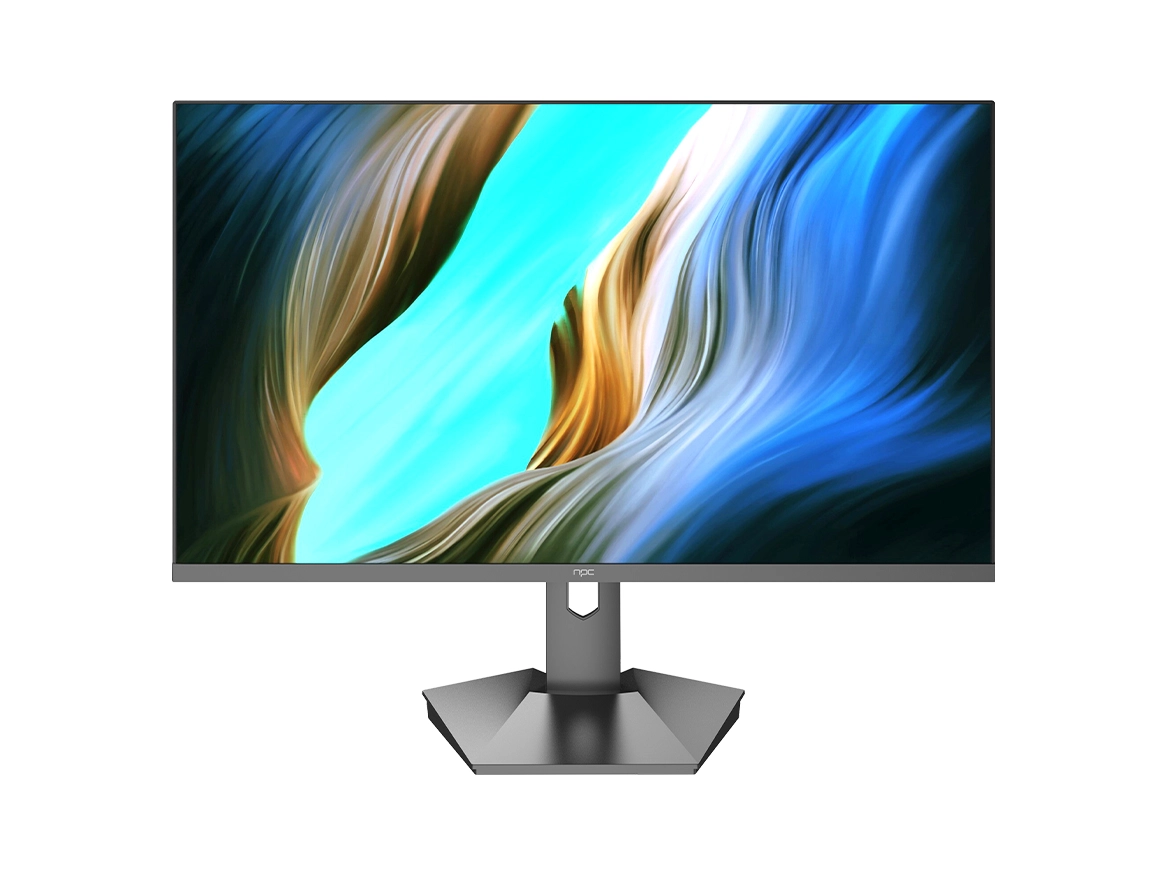
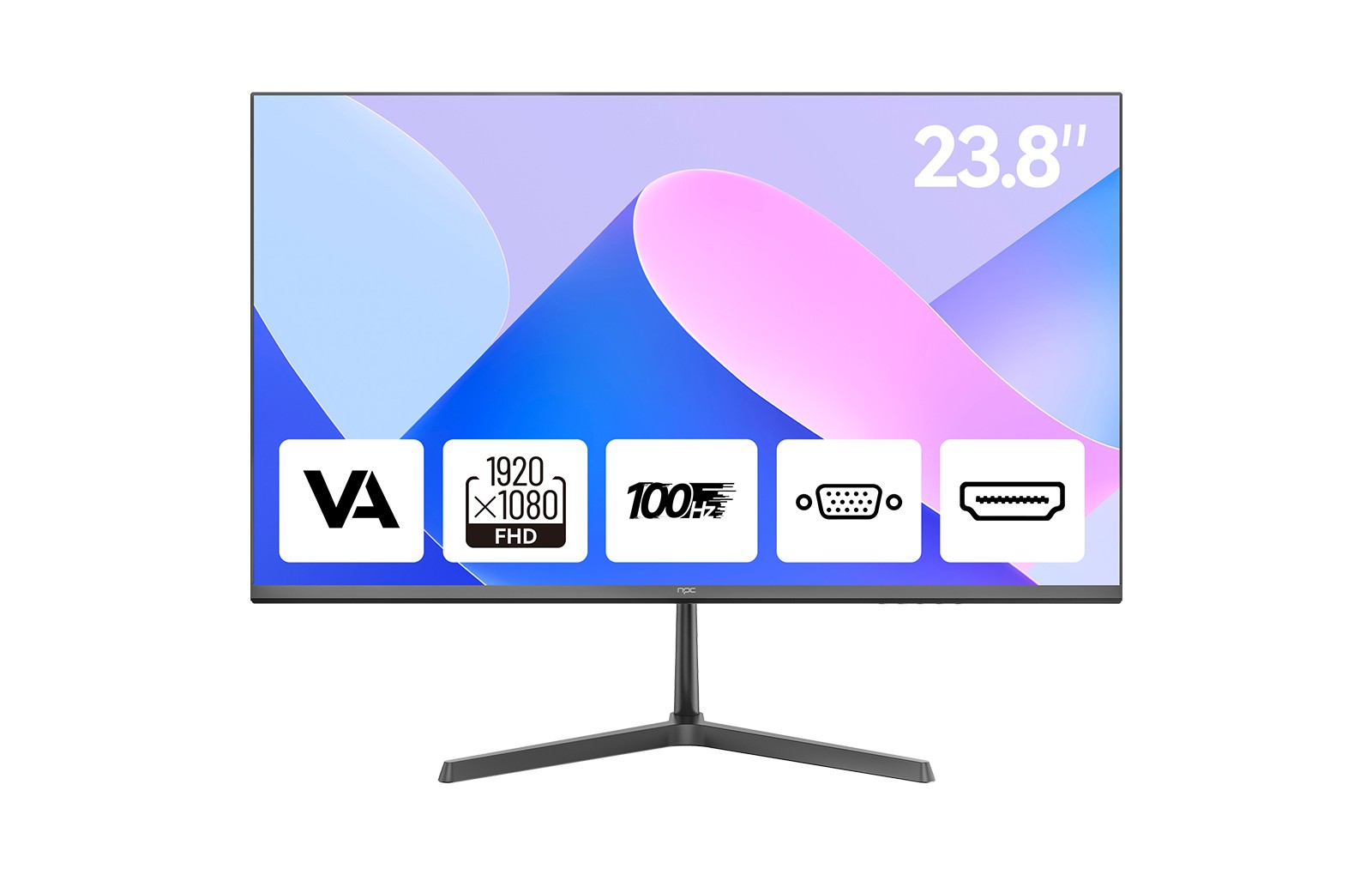
Integrating PiP and PbP features into your computer monitor office setup requires selecting the right display. High-quality monitors, such as the NPC 23.8-inch office monitor, feature Full HD 1920*1080p resolution and a 100Hz refresh rate, making them well-suited for utilizing dual input functionalities effectively. The monitor’s HDMI and VGA interfaces provide flexibility for connecting various devices, while its borderless design and ergonomic tilt adjustment enhance comfort and usability.
To maximize productivity, it's essential to set up your monitor appropriately. Ensure that your workspace is organized, allowing for easy navigation between the main content and secondary windows. Adjust the size of the PiP window for optimal visibility and position it in a manner that minimizes disruptions while working on your primary task. For PbP, consider how best to divide your screen space to ensure clarity and ease of access to both data sources.
Enhance Your Workflow with NPC
Leveraging PiP and PbP features can significantly enhance productivity in your computer monitor office setup. A high-performance monitor, such as the NPC MF2408-U, not only supports these advanced functionalities but also promotes a better working environment with its eye-care features and sleek design. By making informed choices regarding your display setup and application of dual input features, you can enhance your workflow and achieve smoother multitasking.
By effectively utilizing PiP and PbP, you can redefine your work approach and make the most of your computer monitor office setup. Discover how NPC’s innovative monitors can support these features and elevate your productivity to new heights.


