


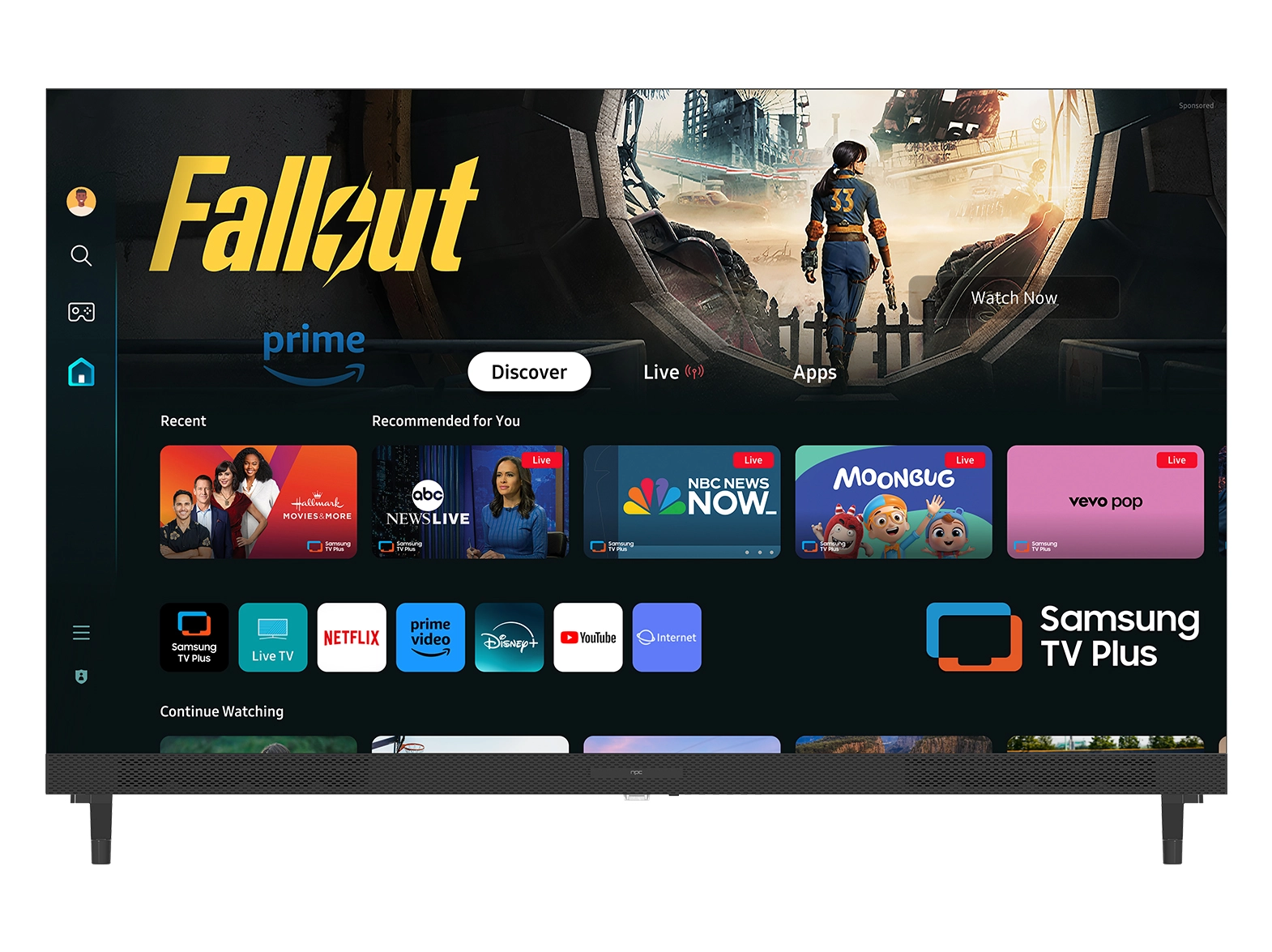




The modern smart television is much more than a screen; it is the central hub for streaming, gaming, and interacting with your digital world. However, this entire universe of content—from 4K streaming on Netflix to using integrated voice commands—relies entirely on one crucial element: a stable internet connection.
Connecting your new smart TV with webOS to your home network doesn't have to be a complicated technical chore. The webOS Hub platform, known for its sleek design and intuitive controls, simplifies the networking process, ensuring you can transition from unboxing to binge-watching in minutes. This comprehensive guide will walk you through every step of connecting your NPC television to your Wi-Fi network, ensuring a fast, stable link that is ready for the demands of high-definition streaming.
Preparation and Getting Ready to Connect
Before you even touch your TV remote, a few simple checks will ensure the connection process is fast and frustration-free. Preparation is key when setting up any home network device.
First and foremost, locate your Wi-Fi network name (SSID) and, critically, your password. Smart TV interfaces, while user-friendly, can make entering complex passwords tedious, so having it written down and easily accessible will save considerable time. Next, consider the location of your television in relation to your wireless router. While smart tv with webOS models from NPC are equipped with advanced built-in Wi-Fi receivers, distance and physical obstructions (like thick concrete walls) can degrade the signal strength. Ideally, your router should be centrally located or, if possible, in the same room as the television. Poor signal quality directly impacts your streaming experience, leading to frustrating buffering pauses and a reduction in picture quality.
Finally, ensure your TV has completed its initial power-up sequence. Most smart TVs, upon first activation, will guide you through basic settings like language and country selection before prompting you to connect to a network. If you've already completed those preliminary steps, you will simply navigate to the main Settings menu to begin the connection process.
Step-by-Step Guide: Connecting Your NPC Smart TV to the Network
The webOS interface utilizes a simple, card-based system that makes navigating settings exceptionally easy. Follow these specific steps using your remote control to establish your wireless connection:
Accessing the Network Settings
l Open the Settings Menu: Press the Settings button on your remote control (often represented by a gear icon ⚙️).
l Navigate to Network: Use the directional pad on your remote to scroll down and select the Network option. This section manages all wired and wireless connections.
l Choose Connection Type: Select the Wi-Fi Connection option. The television's internal Wi-Fi receiver will automatically begin scanning for nearby wireless networks.
Selecting and Authenticating Your Network
l Find Your Network: A list of available Wi-Fi networks will appear on the screen. Locate and select the name of your specific home network (SSID).
l Enter Your Password: The screen will prompt you to enter the Wi-Fi password. Use the on-screen keyboard to carefully input your password. If you have a remote with voice command capabilities (like the Magic Remote often compatible with the webOS platform), you may be able to use the voice function to dictate complex characters faster.
l Connect and Confirm: Select Connect or OK. Your NPC television will attempt to link to your router and acquire an IP address. A successful connection will be confirmed by an on-screen message and the appearance of a small connected icon in the Network status section.
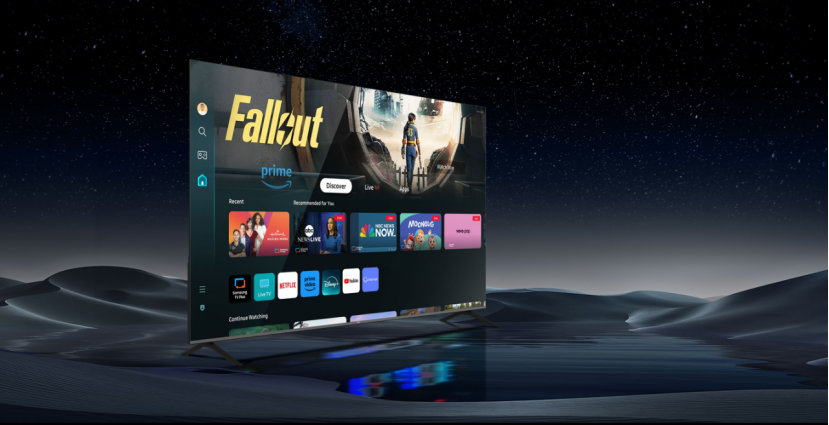
Once connected, your television running the webOS Hub is instantly enabled for a world of content, including pre-installed global streaming apps like Netflix, YouTube, Disney+, and Prime Video. You will then be prompted to log into these services and begin streaming.
Optimizing Your Wireless Connection for 4K Streaming
Successfully connecting your smart tv with webOS is only the first step; optimizing that connection is necessary for the best viewing experience. Smart televisions, especially those capable of displaying stunning 4K Ultra HD resolution, require massive amounts of data flowing continuously. A weak or slow connection will inevitably result in buffering, visual artifacts, and a failure to load content in the highest possible quality.
NPC televisions are designed with advanced wireless technology, supporting modern standards like dual-band Wi-Fi, which utilizes both the 2.4 GHz and 5 GHz frequency bands. Understanding which band you are connecting to is vital for high-performance streaming:
The 2.4 GHz band offers a wider range and is generally better at penetrating walls and physical barriers throughout a large home. However, it is inherently slower and often suffers from congestion, as many household devices (microwaves, older phones, smart home devices) use this same band. This band is generally sufficient for standard definition (SD) or basic high definition (HD) content.
The 5 GHz band, by contrast, offers significantly faster speeds and far less congestion. This faster speed is absolutely essential for reliable 4K UHD streaming, cloud gaming, and quickly downloading large applications from the LG Content Store. However, the trade-off is that its signal range is shorter, and it struggles more to penetrate thick walls.
To ensure your NPC television delivers crystal-clear 4K video, you should always attempt to connect to the 5 GHz version of your network if your router supports it and the TV is located in reasonable proximity. Modern NPC models leverage our dual-band support (IEEE 802.11 b/g/n/AC) to provide this essential high-speed link. If you notice persistent buffering while watching high-resolution content, check your network status in the webOS settings to confirm the TV is utilizing the faster, less congested band. If the TV is only seeing the 2.4 GHz signal, you may need to consider repositioning your router or adding a Wi-Fi range extender to boost the 5 GHz signal into your living room. A stable connection is the foundation upon which the entire smart TV experience is built.
The NPC Difference: Quality, Affordability, and the webOS Hub
You have now successfully connected your television, and the door to premium smart entertainment is wide open. Your seamless experience is made possible by the dedication and commitment of the NPC brand.
Established in 2005, NPC is a technology group company dedicated to providing high-quality and affordable video display products to the global market. NPC’s mission is driven by a focus on cost-effectiveness without compromising performance, which is why our television line incorporates officially authorized technology licenses from top global operating system providers, including the critically acclaimed LG webOS Hub. This strategy ensures access to world-class software and features.
By choosing an NPC smart tv with webOS, you are investing in a product that combines robust hardware with world-class, user-friendly software. These televisions offer an intuitive interface, quick access to streaming applications, and comprehensive connectivity features, all backed by NPC’s commitment to quality and providing a top-notch TV experience that is both accessible and affordable for every consumer.


