






The purchase of a new television marks the start of a radically improved home entertainment experience. You're ready to dive into stunning 4K content, stream endless media, and perhaps even experience next-generation gaming. Yet, the initial process of unboxing, connecting wires, and navigating setup menus can sometimes feel unnecessarily complex.
This comprehensive guide is designed to simplify every step, turning the initial hurdle into a smooth transition to effortless entertainment. We will walk you through the entire process, from safe unboxing to connecting to your home network, specifically highlighting the advanced capabilities and seamless user experience provided by an NPC television running the webOS smart TV platform. By the time you finish, your new display will be perfectly calibrated and ready to deliver peak performance.

Preparation and Physical Installation: Building a Solid Foundation
A successful setup begins before the TV is even powered on, starting with safe handling and proper placement. Due to their size and delicate nature, new large-screen televisions, especially those featuring QLED technology, require careful attention during installation.
First, ensure you have a large, clean, and soft surface available. Always enlist a second person when lifting the display out of the box to avoid accidentally flexing the screen panel. Once unboxed, you must secure the television either on a stand or a wall mount. If opting for the stand, follow the manual to fasten the feet firmly with the supplied hardware. For wall mounting, confirm that your VESA wall bracket is robustly rated to support the TV's specific size and weight, and be certain to maintain adequate space behind the unit for ventilation—a critical factor for the longevity and consistent performance of any high-definition smart display.
Once the display is securely positioned, attention turns to wiring. While connectivity has become simpler, the quality of your cables remains vital for delivering peak 4K and HDR content. Connect the main power cord to a reliable surge protector. For external media devices—such as a gaming console, streaming box, or UHD Blu-ray player—connect them using certified high-speed HDMI cables. It is essential to reserve one of the available HDMI ports, typically one labeled HDMI (ARC/eARC), for your sound system, ensuring high-fidelity audio passes seamlessly to your soundbar or receiver. Many advanced models from NPC, such as the 98N18G, feature multiple HDMI inputs (three on the promoted model) to easily accommodate all your peripherals.
Initial Power-Up and Navigating the WebOS Wizard
With the physical connections in place, it's time to power on the TV and begin the essential software configuration. When the TV is powered on for the first time, it automatically launches the initial setup wizard—a guided process that allows the device to configure itself to your environment and preferences.
The first few steps involve selecting your preferred language and geographic location. The location setting is key, as it enables the television to accurately perform a scan for local over-the-air broadcasts (Digital TV) if you are using an antenna. The wizard will also ask you to confirm whether the TV is installed on a Stand or Wall-mounted. Selecting the correct option allows the television's internal processors to subtly adjust the built-in speaker audio settings, optimizing sound projection based on whether the speakers rely on a wall or a flat surface for reflection.
Following this, you will be prompted to accept the user license agreements and privacy policies, which are necessary steps to enable all the advanced smart features.
Connecting Your NPC webOS Smart TV to the Digital World
This is arguably the most crucial stage for unlocking the device's full potential, as the network connection transforms the screen into a fully featured entertainment center. The webOS smart TV platform, known for its highly intuitive, card-based interface and seamless operation, relies on a solid internet link to deliver its experience efficiently.
When the setup wizard prompts you for network details, you should choose your connection method. For the highest quality and most stable performance—critical for consistent 4K streaming—a physical Ethernet cable connection is always the preferred option. If a wired connection is not feasible, select your Wi-Fi network. High-performance NPC displays are built to support dual-band Wi-Fi (often featuring IEEE 802.11 b/g/n/AC 2.4G/5G), ensuring a fast, reliable link to your router.
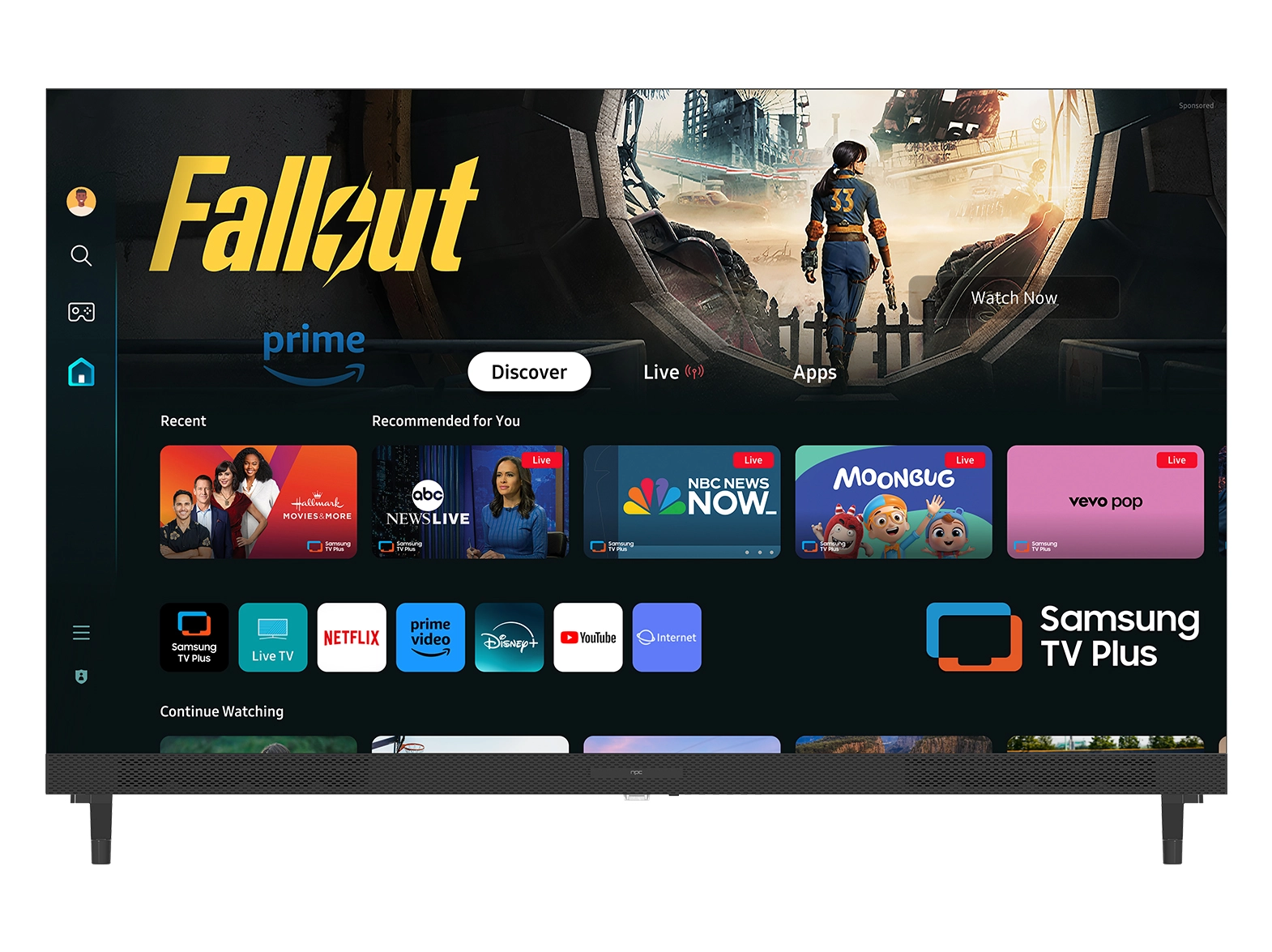
Once connected, your webOS smart TV will confirm its link to the internet. Because the platform comes pre-loaded with essential global applications such as Netflix, YouTube, Prime Video, and Disney+, the next task is simply logging into these services. The platform’s ability to handle advanced features like AirPlay and Apple HomeKit can also be configured during this stage, transforming your new television into the central hub of your existing connected living space. If your television comes with a Magic Remote, the setup wizard will also guide you to pair it via Bluetooth and test its "Auto voice control" capabilities, allowing for hands-free searching and command execution using your voice.
Fine-Tuning: Optimizing Picture Quality and Performance
Even the most advanced display needs configuration beyond the default factory settings to deliver its best performance. After completing the network setup, navigate to the Picture Settings menu. Models like the NPC 98N18G, which leverage QLED Display Technology to achieve a stunning 3840x2160 (4K UHD) resolution, are capable of incredible visual fidelity, but require the right modes to truly shine.
We advise switching the typically bright "Vivid" picture mode to Standard or Cinema/Movie. These settings are calibrated to be closer to industry standards for color accuracy. If you are a dedicated gamer, always select Game Mode to minimize input lag. Furthermore, ensure that any external devices capable of outputting High Dynamic Range (HDR) content are properly configured and that your TV's HDMI settings are activated to receive the full HDR signal. The powerful hardware, including the ARM CA53 Quad-core CPU, Mali-G52 GPU, 3000:1 contrast ratio, and high panel brightness, can only deliver its potential once the correct picture mode is selected.
Finally, access the Audio Settings. Whether you are relying on the powerful built-in 2*10W BOX speakers with Dolby Digital PLUS support or an external sound system connected via HDMI ARC/Optical, select the appropriate output device and choose a Sound Mode (like Cinema or Standard) to optimize audio for your chosen content.
The NPC Difference: Quality, Affordability, and the webOS Hub
You have now successfully set up your television, and the door to premium smart entertainment is wide open. Your smooth experience is made possible by the dedication and commitment of the NPC brand.
Established in 2005, NPC is a technology group company dedicated to providing high-quality and affordable video display products to the global market. NPC’s mission is driven by a focus on cost-effectiveness without compromising performance, which is why our television line incorporates officially authorized technology licenses from top global operating system providers, including the critically acclaimed LG webOS Hub. This strategy ensures access to world-class software and features.
By choosing an NPC webOS smart TV, you are investing in a product that combines robust hardware with world-class, user-friendly software. These televisions offer an intuitive interface, fast access to streaming applications, powerful internal components (like 1.5GB of DDR memory), and comprehensive connectivity features, all backed by NPC’s commitment to quality and providing a top-notch TV experience that is both accessible and affordable for every consumer.


