






For those who use light laptops for travel and rely on HDMI connections for connecting to external displays or other devices, a non-functioning HDMI port can be a significant problem. Let's explore the possible reasons and solutions for this issue.
Hardware and Connection-Related Factors
One of the first things to check is the physical condition of the HDMI port on the laptop. It could be damaged due to accidental impact, dust or debris accumulation, or wear and tear over time. Inspect the port for any visible signs of damage such as bent pins, cracks, or foreign objects stuck inside.
Another hardware-related issue could be compatibility between the NPC laptop and the external device. Some older laptops may not support the latest HDMI standards or may have compatibility issues with certain types of external devices. However, NPC laptops are designed to be compatible with a wide range of devices. Check the specifications of both the laptop and the external device to ensure they are compatible with each other.
Software and Driver Problems
Outdated or incorrect graphics drivers can often cause issues with the HDMI port. The graphics drivers are responsible for controlling the video output of the laptop. If the drivers are not updated or are not configured correctly, the HDMI port may not work properly. Check for driver updates from the laptop manufacturer's website or the graphics card vendor's website and install them if available.
The laptop's operating system settings can also affect the HDMI port. Make sure the display settings are configured correctly to detect and use the HDMI connection. Some laptops have dedicated settings or control panels for managing external displays. Check these settings to ensure the HDMI port is enabled and properly configured.
Software conflicts or background processes running on the laptop can interfere with the HDMI connection. Some applications or services may be using resources or blocking the video output signal. Try closing unnecessary applications or performing a clean boot of the laptop to see if the HDMI port starts working.
Power and Display Settings Considerations
The power supply to the laptop can sometimes affect the HDMI port. If the laptop is running on battery power and is in a power-saving mode, it may not be able to provide enough power to the HDMI port for a stable connection. Connect the laptop to a power source or adjust the power settings to ensure that the laptop has sufficient power to support the HDMI connection.
The display settings on the external device connected via HDMI may also need to be checked. Some devices have their own display settings that need to be configured correctly to receive the signal from the laptop. Make sure the external device is set to the correct input source and is compatible with the resolution and refresh rate output of the laptop.
Conclusion
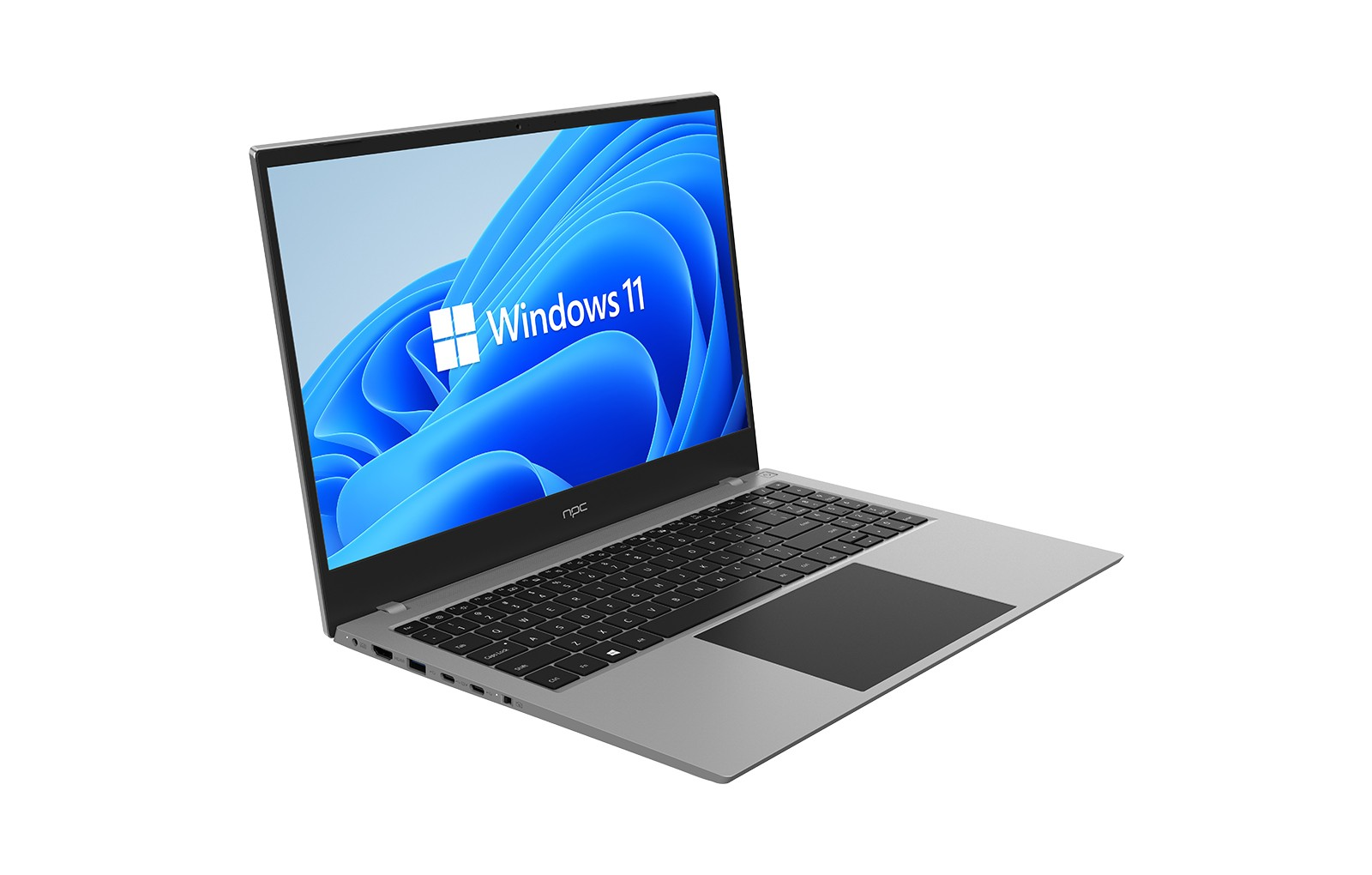
In conclusion, when the HDMI port on a light laptop for travel is not working, it is important to systematically troubleshoot the problem by considering hardware, software, and power and display settings. The NPC Fusion X13 is not just a lightweight travel laptop; it's an essential tool for professionals who prioritize flexibility, performance, and reliability. With our ongoing commitment to innovation and customer support, we aim to make your travels as productive as possible. When you choose NPC, you're choosing a partner in your business endeavors, ready to help you navigate the demands of work, no matter where it takes you. With our laptops, your productivity is in good hands, allowing you to focus on what truly matters: your work and your journey.


