






For those in the business and professional world who rely on light laptops for travel but require expanded display capabilities, connecting two monitors can significantly enhance productivity and multitasking. Let's explore the steps and considerations involved in setting up this configuration.
Assessing Laptop Compatibility and Hardware Requirements
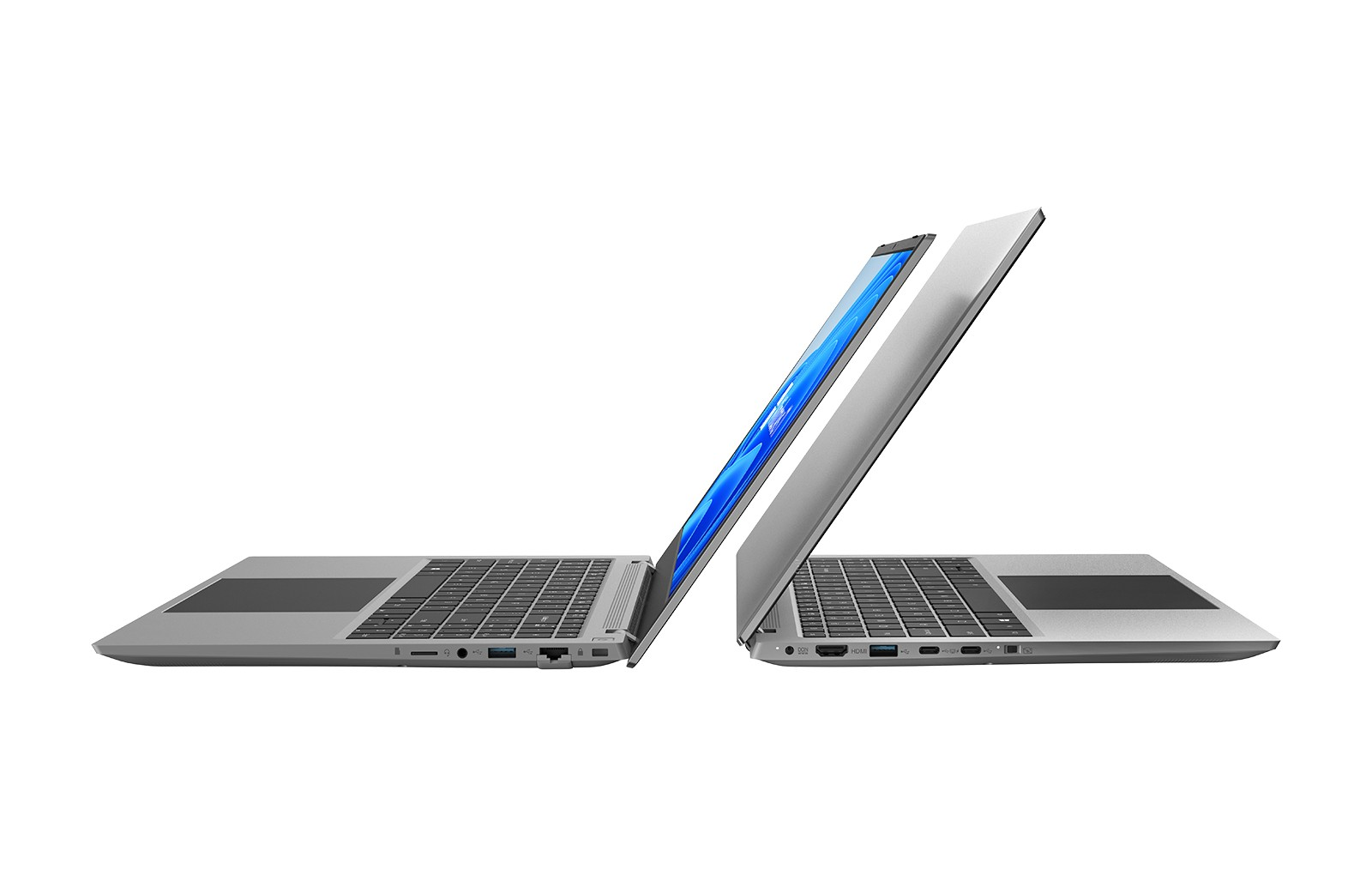
The first step in connecting two monitors to an NPC laptop is to determine if the laptop has the necessary hardware capabilities. NPC laptops are designed with a variety of ports and graphics processing power to support multiple displays. Check the available video output ports on the laptop. Most modern NPC laptops come with at least one HDMI port and one USB-C port with DisplayPort Alt Mode or a dedicated DisplayPort.
Understanding the specifications of your laptop's video output options is crucial for determining the best way to connect the monitors. It is also important to consider the graphics processing capabilities of the laptop. NPC laptops are equipped with powerful graphics cards to handle demanding business applications and multitasking. The laptop's graphics card needs to be able to handle driving two monitors simultaneously at the desired resolutions and refresh rates.
Selecting the Right Cables and Adapters for a Seamless Connection
Based on the ports available on the NPC laptop and the monitors, the next step is to choose the appropriate cables and adapters. For example, if the laptop has an HDMI port and one of the monitors also has an HDMI input, an HDMI cable can be used for that connection. For the second monitor, if it has a DisplayPort input and the laptop has a USB-C port with DisplayPort Alt Mode, a USB-C to DisplayPort adapter or a dedicated DisplayPort cable may be required.
It is essential to choose high-quality cables and adapters that are capable of supporting the desired resolutions and refresh rates. NPC recommends using cables and adapters that are certified for compatibility with our laptops to ensure a stable and clear connection.
Configuring the Display Settings for Optimal Performance
Once the physical connections are made, it is time to configure the display settings on the laptop. Most operating systems provide options for managing multiple monitors. By right-clicking on the desktop and selecting the display settings or by going to the system settings and looking for the display section, users can access the necessary configuration options.
The main options include extending the desktop across both monitors to create a larger workspace or duplicating the display on both monitors to show the same content simultaneously. Users can also adjust the resolution and refresh rate for each monitor according to their capabilities and preferences. Some laptops may require the installation of additional graphics drivers or software to fully utilize the multi-monitor setup and access advanced settings such as color calibration and aspect ratio adjustment.
Conclusion
In conclusion, connecting two monitors to an NPC laptop used in a business or professional setting can greatly enhance productivity and provide a more immersive and efficient work environment. By carefully assessing the laptop's compatibility, selecting the right cables and adapters, and configuring the display settings correctly, users can create a seamless and effective multi-monitor setup. At NPC, we understand the importance of providing our business customers with the tools and flexibility they need to succeed. Whether for multitasking, data analysis, or creative work, having two monitors connected to an NPC light laptop for travel can provide the flexibility and screen real estate needed to get the job done effectively.


