

When using a 240 fps gaming pc monitor, getting the most out of its capabilities requires proper optimization. Let’s explore the steps to ensure you have the best gaming experience possible.
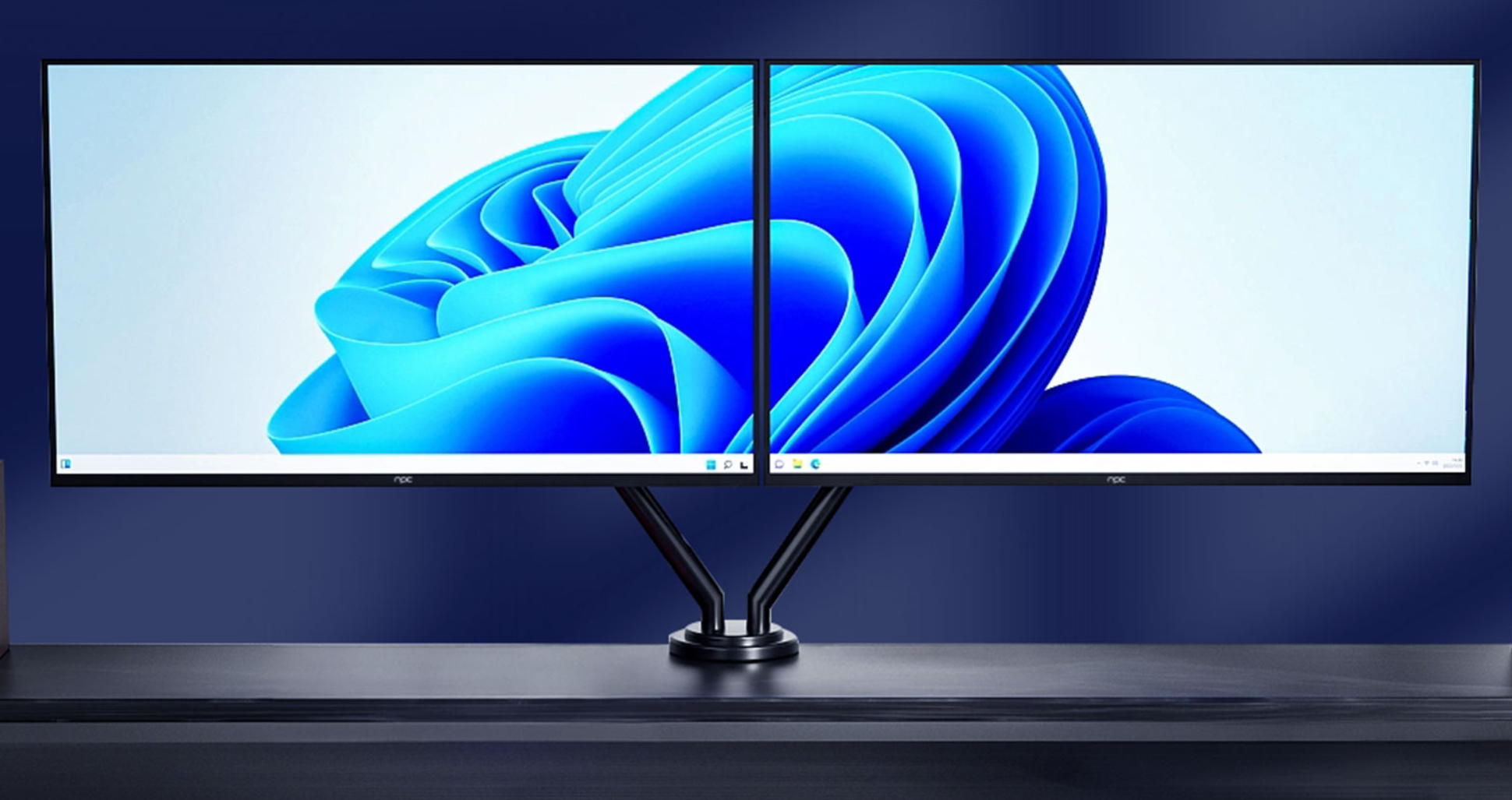
Adjusting Display Settings
The first step in optimizing your monitor is to fine-tune the display settings. Start by setting the resolution to the native resolution of the monitor, which for a high-performance gaming monitor is often QHD or higher. This ensures that you are getting the sharpest and most detailed visuals possible.
Adjust the refresh rate to the maximum supported by the monitor, which in this case is 240 hz. To do this, go to your computer’s display settings and select the appropriate refresh rate option. Make sure your graphics card and drivers are also capable of outputting at this refresh rate.
Tweak the brightness, contrast, and color settings to your preference. Aim for a balance that provides clear visibility of details in the game without being too bright or too dim. You can use the monitor’s built-in presets or calibration tools if available. For example, some gaming monitors have specific gaming modes optimized for different types of games such as first-person shooters or racing games. These presets adjust the color and contrast settings to enhance the visibility of key elements in those games.
Additionally, enable any advanced display features such as adaptive sync technology (like NVIDIA G-Sync or AMD FreeSync). This helps to eliminate screen tearing and stuttering by synchronizing the monitor’s refresh rate with the graphics card’s output.
Graphics Card Settings Optimization
To ensure smooth gameplay at 240 fps, you need to optimize the settings on your graphics card. Open the graphics card control panel and adjust the graphics quality settings for the games you play. Lowering some of the more demanding settings such as anti-aliasing and shadows can significantly increase the frame rate without sacrificing too much visual quality.
Make sure to enable hardware acceleration features such as GPU-accelerated video decoding if supported by your graphics card and the applications you use. This can offload some of the processing tasks from the CPU to the GPU, improving overall system performance.
Configure the power management settings on your graphics card to prioritize performance during gaming sessions. Some graphics cards have default power-saving modes that can limit the performance. Adjust these settings to ensure that the graphics card is running at its full potential when gaming.
Also, keep your graphics card drivers up to date. Manufacturers regularly release driver updates that can improve performance, fix bugs, and add support for new games and features.
Cable and Connection Management
The quality and type of cable used to connect your monitor to the computer can have a significant impact on the performance. Use a high-quality HDMI or DisplayPort cable that is rated for high refresh rates and data transfer speeds. Make sure the cable is securely connected at both ends to avoid signal loss or interference.
If your monitor has multiple input ports, make sure you are using the one that supports the highest refresh rate and resolution. Some older ports or cables may not be able to handle the 240 fps output of your gaming PC.
Additionally, manage the cable clutter to ensure proper airflow around your computer and monitor. This helps to prevent overheating and ensures stable performance. You can use cable management tools such as cable clips or sleeves to keep the cables organized and out of the way.
Finally, make sure your computer and monitor are connected to a stable power source. Voltage fluctuations or power outages can disrupt the gaming experience and potentially damage your hardware. Consider using a surge protector or an uninterruptible power supply to protect your equipment.
Conclusion
In conclusion, NPC is dedicated to helping you optimize your 240 fps gaming pc monitor. By following our expert guidance on adjusting display settings, optimizing graphics card configurations, and managing cables and connections, you can ensure peak gaming performance and visual experience. Regularly maintaining and updating your hardware and software with our support allows you to fully embrace the high refresh rate and advanced features of your NPC gaming monitor, immersing you in an unbeatable gaming world.