


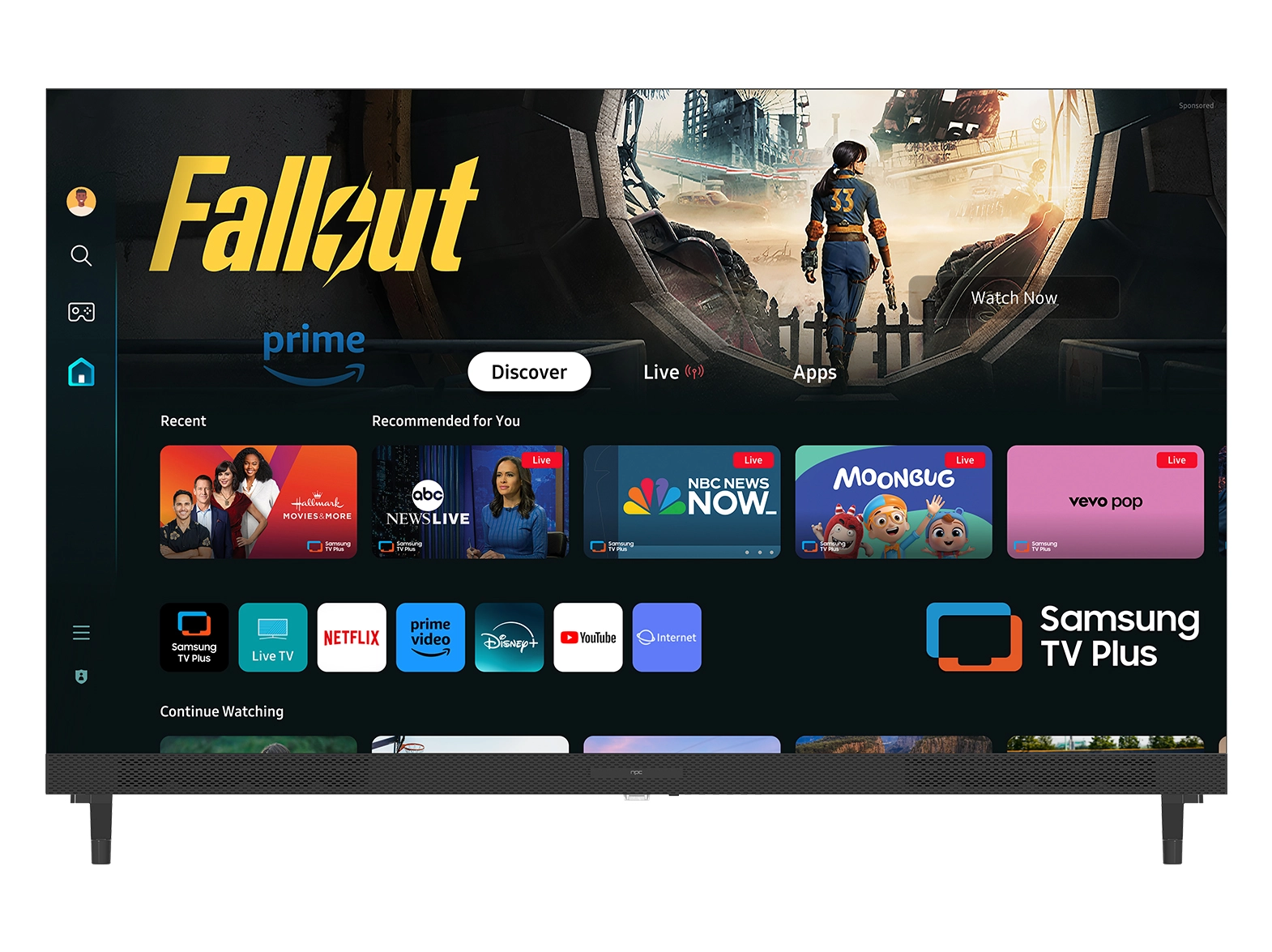


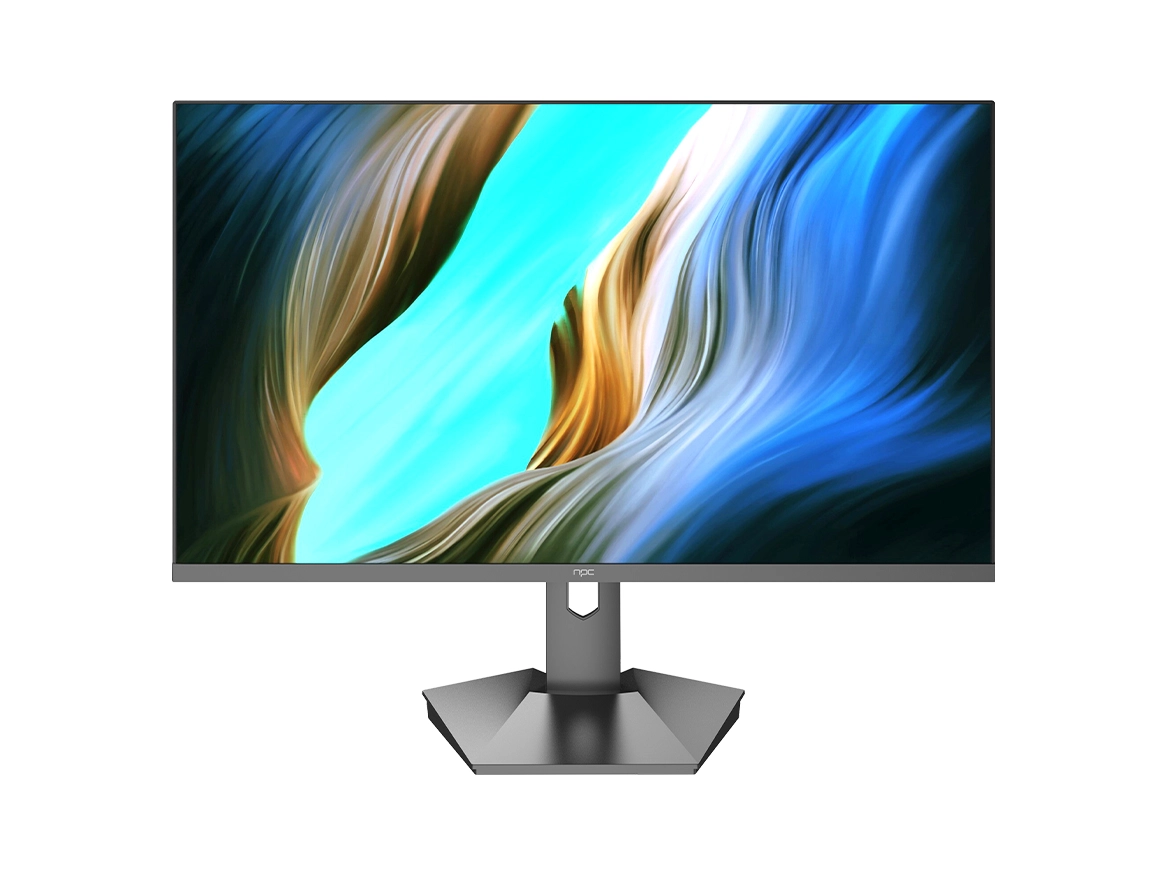


The modern All in One PC AMD Ryzen is built for multitasking, blending professional power with a compact, elegant design. While its primary role is to drive productivity, its robust Ryzen processor and integrated AMD Radeon™ Graphics also unlock a significant potential for smooth, engaging casual gaming, eSports titles, and multimedia entertainment.
The key to unlocking this potential is not brute force, but smart optimization. By leveraging AMD’s powerful software and tweaking a few essential in-game options, you can transform your streamlined NPC AIO into a highly capable gaming machine. This guide provides the step-by-step process for maximizing performance, ensuring you get playable, enjoyable frame rates at the 1080p resolution inherent to these stunning displays.
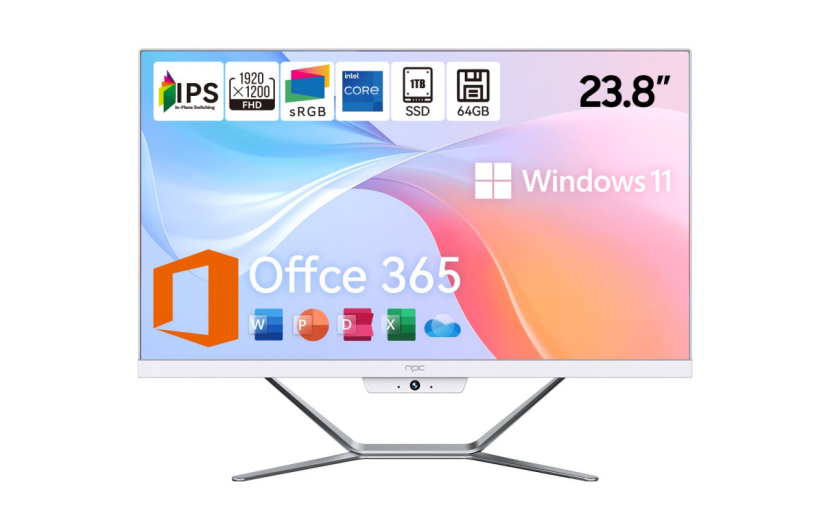
The Foundation: Preparing the System for Maximum Output
Before diving into the game-specific optimizations, ensure your system is properly prepared. Performance is often bottlenecked by background processes or outdated drivers.
1. Software and Drivers
l Update the AMD Software: Adrenalin Edition: This is the most critical step. The Adrenalin software suite contains the drivers and the performance-boosting features we need.Always install the latest version directly from AMD or through the application itself to benefit from continuous performance and stability improvements.
l Windows Power Plan: Ensure your operating system isn't restricting the CPU. Go to Windows Power & Sleep Settings and set your plan to High Performance (or Ultimate Performance if available). This forces the processor to prioritize speed over energy efficiency.
l Disable Startup Clutter: Use the Windows Task Manager (Ctrl + Shift + Esc) to review the Startup tab. Disable any applications that aren't necessary—like messaging apps or cloud services—to free up valuable RAM and CPU cycles before launching a game.
2. Memory Matters
The integrated Radeon Graphics uses the system’s main RAM (DDR4) as its video memory. Since the NPC All in One PC AMD Ryzen typically comes with 16GB of high-speed DDR4 RAM, ensuring no background tasks consume large amounts of it is vital for stable performance.
Harnessing the Power of AMD Software: Adrenalin Edition
The AMD Adrenalin Edition software is your performance dashboard. You can access it by right-clicking on your desktop and selecting AMD Software: Adrenalin Edition. These three features are the biggest frame rate boosters for an NPC All in One PC AMD Ryzen setup:
Feature | Action | Benefit for AIO Gaming |
Radeon Super Resolution (RSR) | Enable. Set the game to a lower resolution (e.g., 720p) in-game. | Allows the game to render at a lower resolution for maximum FPS, and RSR intelligently upscales it to the AIO’s native 1080p screen with minimal quality loss. |
Radeon Anti-Lag | Enable (Globally). | Reduces input latency by synchronizing the CPU and GPU. Essential for competitive games (eSports) where reaction time is critical. |
Radeon Image Sharpening (RIS) | Enable and set between 10% and 30%. | When you lower in-game graphics settings to gain FPS, the image can look soft. RIS uses an intelligent filter to sharpen the image detail, restoring clarity. |
Global Graphics Quality Tweaks (The Performance Priority)
Under the Gaming > Graphics tab in Adrenalin, you can make global changes to prioritize framerate over visual fidelity:
l Anti-Aliasing Method: Set to Use Application Settings. This lets you control it in-game, where you should set it to Off or the lowest available setting (e.g., FXAA) for max FPS.
l Texture Filtering Quality: Change from Standard to Performance.This slightly lowers the quality of distant textures but provides an immediate, noticeable boost in framerate.
l Enhanced Sync: Enable this as a superior alternative to traditional V-Sync. It helps reduce screen tearing without incurring the high input lag penalties of standard V-Sync.
In-Game Settings: The FPS Checklist
Even with the Adrenalin software configured, your in-game settings provide the final, most crucial control over performance. For integrated graphics, the goal is always to reduce the strain on the GPU, maximizing the frame rate to take advantage of the AIO’s smooth, fast-response screen (often 100Hz).
Use this checklist within your game’s graphics menu:
1. Rendering Resolution: If you are not using RSR, ensure this is set to the native resolution (1920x1080). If you are using RSR, set this to 720p (1280x720) in the game settings.
2. Texture and Model Detail: These have the largest impact on RAM usage. Set both to Medium or Low.
3. Shadows and Lighting: Disable shadows entirely or set them to the absolute Lowest preset. Shadows are visually demanding and provide the biggest performance increase when disabled.
4. Post-Processing Effects: Disable or turn down options like Motion Blur, Depth of Field, Ambient Occlusion, and Ray Tracing (if available). These features add visual flair at a severe cost to FPS.
5. View Distance/Foliage: For eSports titles like Valorant or CS:GO, you can set this to Low. For open-world games, keep it at Medium to avoid pop-in, but be prepared to accept lower frame rates.
By combining the NPC hardware—the high-efficiency AMD Ryzen processor, the ample 16GB RAM, and the fast SSD—with these targeted software and in-game adjustments, you ensure that your AIO is performing at its absolute peak for any entertainment or casual gaming need.
Introduction to NPC: Powering the Versatile Workspace
The NPC brand was established in 2005 as a global technology group specializing in the research, production, and sale of high-quality display and personal computer solutions. Operating across the globe, NPC is dedicated to making powerful, versatile PC technology accessible through reliable manufacturing and competitive pricing. The NPC All in One PC AMD Ryzen series perfectly encapsulates this mission, offering a seamless blend of performance and sophisticated design.Built around high-efficiency Ryzen processors, these AIO PCs deliver exceptional speed for both demanding professional tasks and smooth casual gaming, providing outstanding value in a single, elegant desktop solution.


