




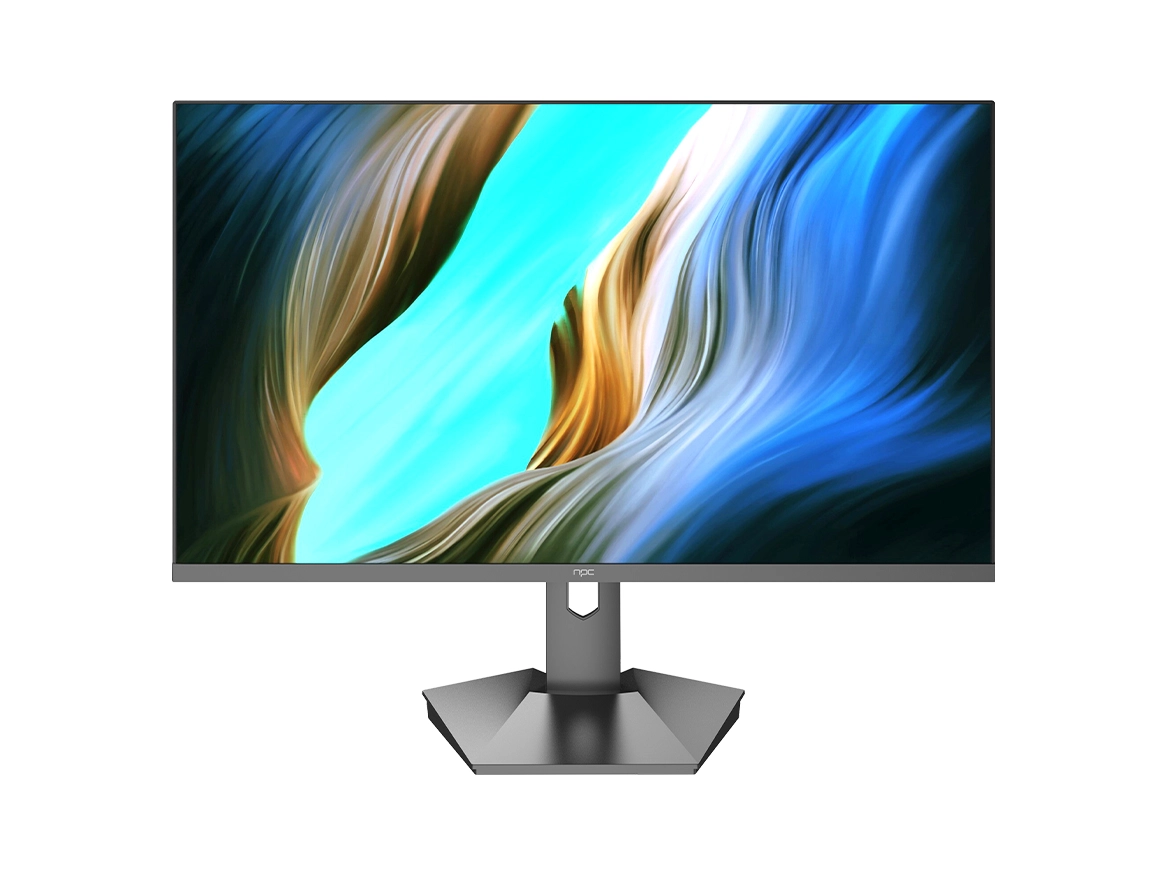


For those who enjoy gaming on a laptop while on the go but want to enhance their gaming experience with a larger external monitor, knowing how to connect a gaming laptop to a monitor is essential. Let's explore the steps and considerations involved in laptop travel.
Checking Compatibility and Required Cables
The first step is to ensure that your gaming laptop and the monitor are compatible. Check the available ports on your laptop and the monitor to determine the best connection method. Common ports include HDMI, DisplayPort, and USB-C with DisplayPort Alt Mode.
Additionally, if your laptop has a USB-C port that supports video output, you can use a USB-C to HDMI or USB-C to DisplayPort adapter or cable depending on the monitor's input requirements. This can be a convenient option as it may also provide power delivery and data transfer capabilities.
Connecting the Laptop and Monitor
Once you have the appropriate cable or adapter, connect one end to the output port on your gaming laptop and the other end to the input port on the monitor. Make sure the connections are secure and properly seated.
After connecting the cables, turn on the monitor and then power on your laptop. The laptop should automatically detect the external monitor and display an image. If it doesn't, you may need to adjust the display settings on your laptop.
Optimizing the Display Settings
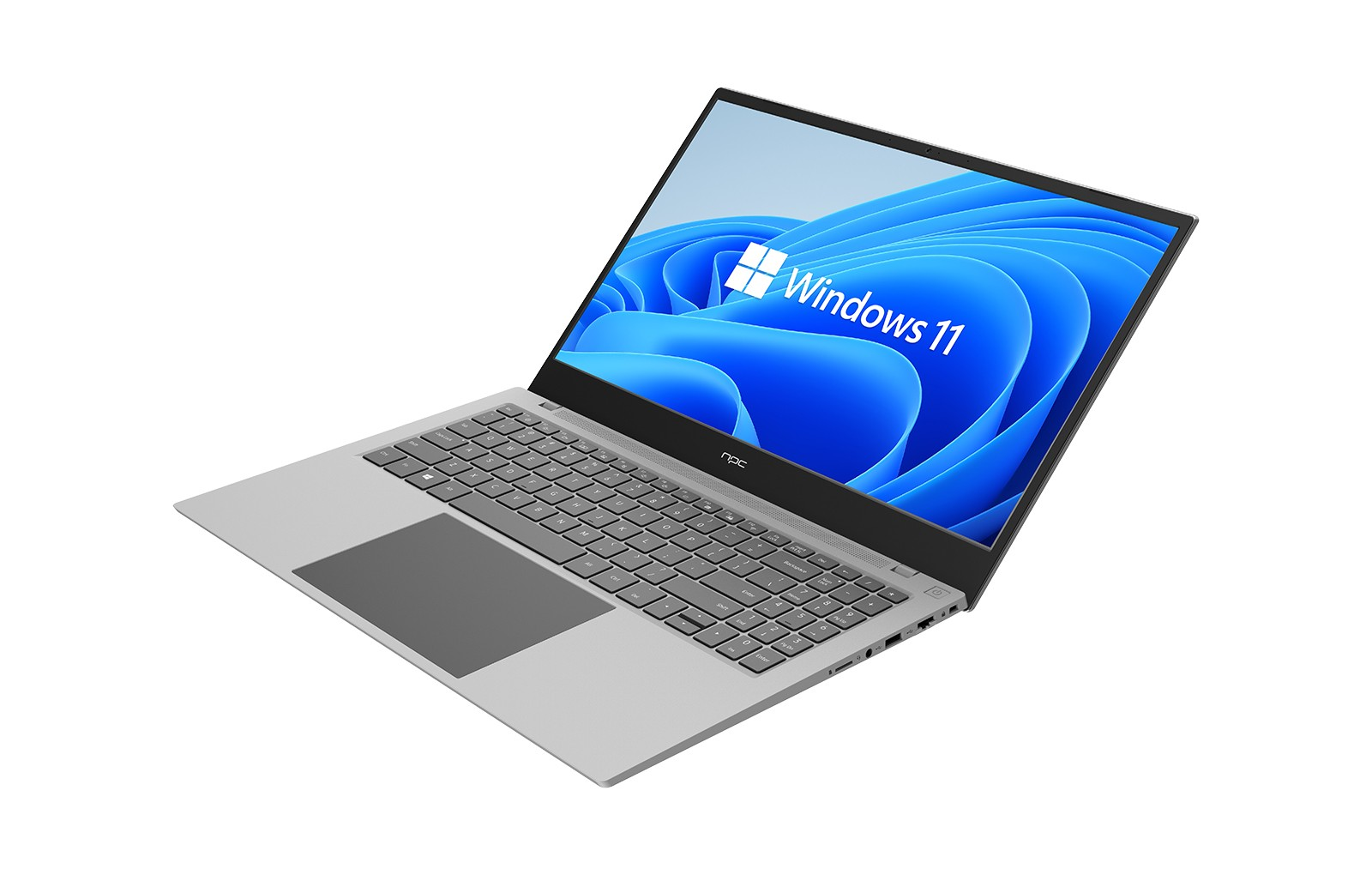
Once the connection is established, it's important to optimize the display settings for the best gaming experience. Start by setting the resolution and refresh rate on the monitor to match the capabilities of your NPC gaming laptop and the monitor.
Adjust the color settings and brightness to your preference. Some monitors come with built-in presets for gaming or different color profiles that you can choose from.
Additionally, if your NPC gaming laptop has a dedicated graphics card, make sure to configure the graphics settings for the external monitor. You can access the graphics control panel provided by the graphics card manufacturer and adjust settings such as anti-aliasing, texture quality, and vertical sync to optimize the performance and visual quality for your games.
Conclusion
In conclusion, connecting an NPC gaming laptop to a monitor can significantly enhance your gaming experience by providing a larger display and potentially better performance. By following the steps of checking compatibility, making the physical connection, and optimizing the display settings, you can enjoy a seamless gaming setup whether you're at the office, on a business trip, or at home. Our NPC gaming laptops are designed to provide the power and flexibility you need for both work and play, and understanding how to connect to an external monitor gives you more options for an immersive gaming experience.


