


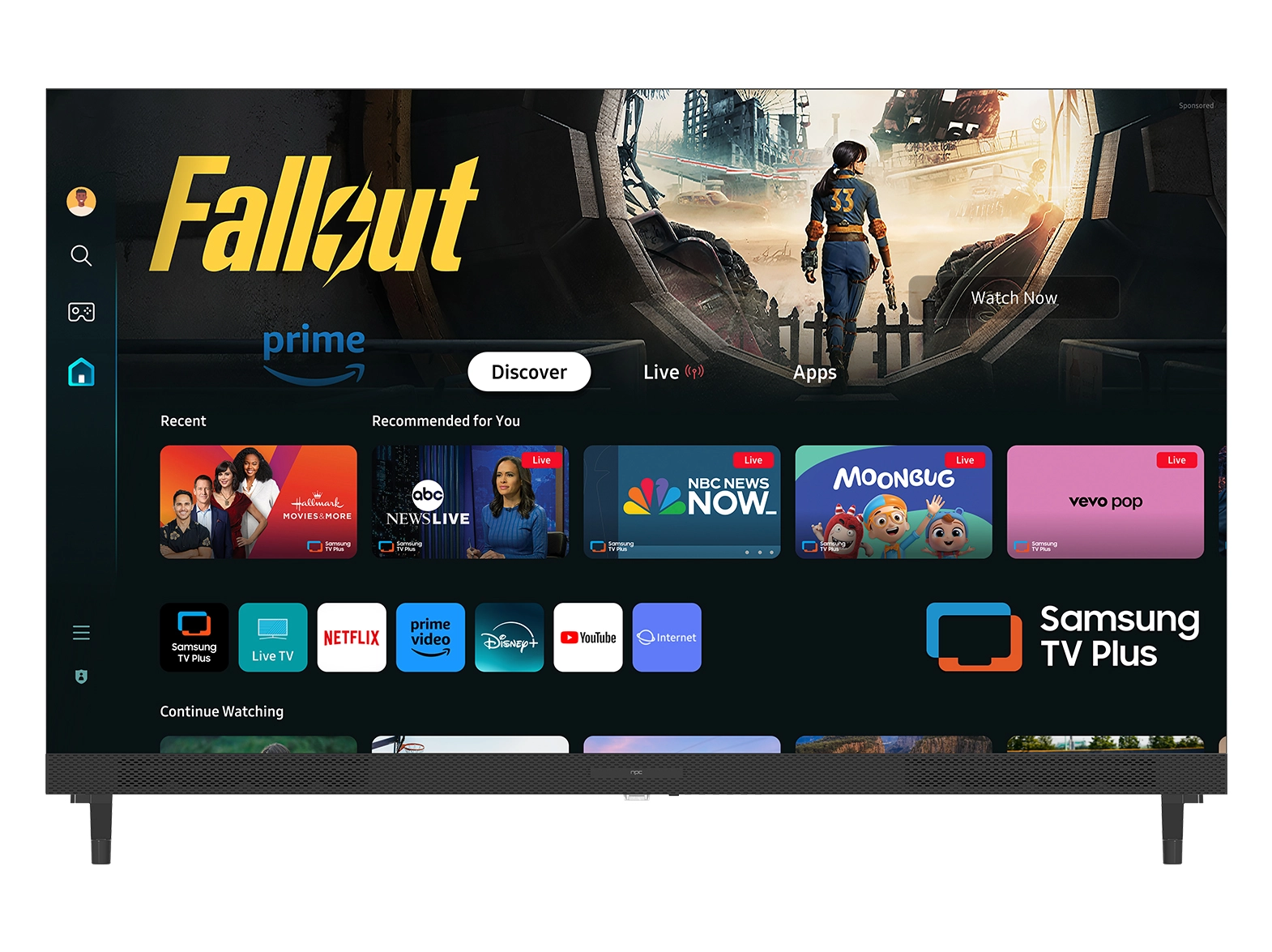




The modern demands of information consumption often require simultaneous viewing of disparate content. Whether monitoring multiple data feeds, comparing presentations, or simply keeping an eye on a live news channel while streaming a separate training video, the ability to split a single display into several active screens is no longer a luxury—it is a necessity.
Smart television technology, driven by operating systems like Tizen OS TV, has stepped up to meet this challenge by offering advanced multitasking capabilities. The Multi-View feature transforms a large-format display into a dynamic visual dashboard, maximizing efficiency for professional users and enhancing the entertainment experience for consumers. Understanding how to seamlessly activate and customize this feature is key to unlocking the full potential of today's intelligent displays.
The Technological Edge of Tizen OS TV
Tizen OS, the powerful operating system leveraged in high-performance televisions and display solutions, provides a streamlined and robust platform for multitasking. At its core, Multi-View allows users to partition the screen to display two or more independent sources simultaneously. These sources are versatile, ranging from traditional cable or HDMI inputs to natively supported streaming applications and mirrored mobile devices.
This capability is particularly vital in B2B applications where efficiency and visual data processing are paramount. In commercial settings, a single Tizen OS TV can serve as:
l A command center displaying live security camera feeds alongside an enterprise dashboard.
l A collaborative hub running a video conferencing application next to a shared document or live presentation.
l A retail display promoting different products or services across segmented windows.
The integration within the Tizen OS ecosystem ensures a stable, high-definition experience, whether viewing multiple sources in a side-by-side format or utilizing Picture-in-Picture (PiP) mode.
Practical Guide: Enabling and Customizing Multi-View
The setup for Multi-View is intuitive, designed to be quickly accessible via the Smart Hub interface. While the exact steps can vary slightly depending on the specific model and software version, the core process remains consistent across high-quality displays running the Tizen OS TV platform.
Step-by-Step Activation
To begin using Multi-View on a compatible Tizen OS display:
1. Access the Smart Hub: Press the Home button on your TV remote to bring up the Smart Hub menu.
2. Locate Multi-View: Navigate through the menu options to find and select the Multi View or Split Screen function. On many models, this is housed within the Settings menu under the General or Smart Features section.
3. Choose a Layout: The system will prompt you to select a layout template. Options typically include side-by-side splits (50/50 or 70/30) and various Picture-in-Picture (PiP) configurations.
4. Select Sources: You will be prompted to choose content for each segment of the screen.
lPrimary Source (Left/Main Screen): Often includes supported native apps (like YouTube), Tuner (Live TV), or an external HDMI input (e.g., game console, set-top box).
lSecondary Source (Right/PiP Screen): Commonly supports Mobile Device Mirroring (AirPlay 2 or Smart View) from a smartphone, or a second HDMI input.
Advanced Customization and Control
Once Multi-View is active, users can refine their experience for optimal viewing:
lAudio Control: By default, only the content on the primary screen produces sound. However, Tizen OS allows users to switch the active audio output between the two screens easily or, on select models, enable Double Audio to listen to both sources simultaneously.1 Alternatively, users can route one source's audio to a paired Bluetooth headphone set while the other plays through the TV speakers, a key feature for focused multitasking.
lScreen Swapping & Sizing: Content can be quickly exchanged between the primary and secondary windows, and the size of the PiP or split windows can be adjusted, allowing the user to prioritize different feeds without interrupting the viewing experience.
lSource Adjustment: Selecting a window and pressing the 'Select' button allows the user to enter content selection mode, enabling them to change the running app or external source for that specific segment on the fly.
This level of granular control ensures that the user's viewing environment is perfectly tailored to the task, providing flexibility that a standard picture-in-picture feature simply cannot match.
Leveraging Multi-View for Professional Environments
While often marketed for entertainment—watching a game while mirroring a social feed—Multi-View technology finds its most impactful use in demanding professional and commercial settings. For Original Design Manufacturers (ODMs) and Original Equipment Manufacturers (OEMs) integrating this technology into their solutions, the stability and feature set of Tizen OS offer a distinct competitive advantage.
Consider these cases:
lBroadcast Monitoring: A production studio can monitor two separate live feeds (e.g., camera outputs, teleprompter text, or color grading controls) on one large display, optimizing workspace layout and minimizing the need for multiple screens.
lData Analysis and Comparison: Financial analysts can view a live trading ticker on one screen while running complex modeling software mirrored from a laptop on the adjacent screen.
lHealth and Fitness: In a gym or training facility, a workout video can occupy the main screen while the user’s performance metrics (e.g., heart rate, calorie burn) are mirrored from a smartphone onto the secondary screen.
This utility highlights the importance of choosing a robust manufacturing partner that prioritizes reliable hardware and precise integration of the operating system.
Precision and Power: Introducing the NPC-70N21
To ensure seamless multi-tasking and stable Multi-View performance, the hardware foundation must be as capable as the software. The Tizen OS Smart TV solutions offered by NPC are built with high-quality components designed for sustained performance.
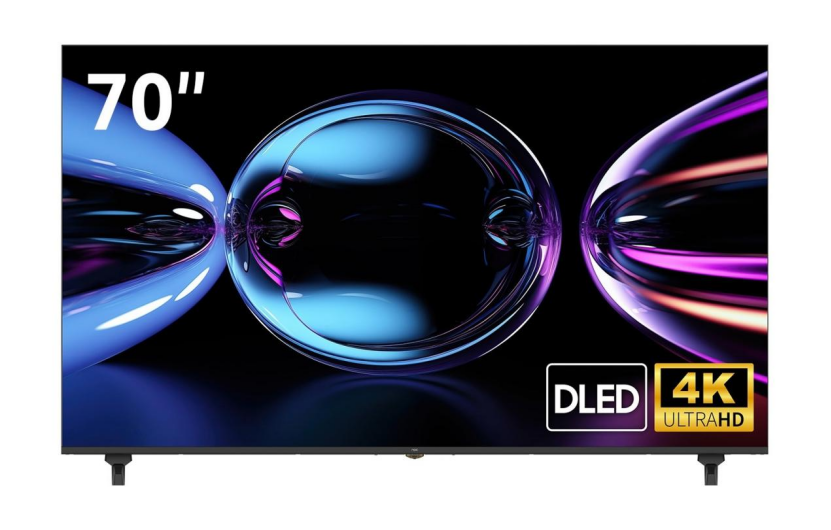
A specific example of this commitment to quality and feature integration is the NPC-70N21 UHD Smart TV.This 70-inch model provides the power and clarity required to run complex multi-screen layouts without compromise:
Specification | Detail |
Model | NPC-70N21 UHD Smart TV |
Display Technology | QLED D-LED Backlight Unit |
Resolution | 4K Ultra HD (3840×2160 pixels) |
Contrast Ratio | 1200:1 |
HDR/Audio Support | Dolby Vision and Dolby Atmos |
This combination of a high-resolution QLED panel and powerful processing allows the NPC-70N21 to render and manage multiple simultaneous 4K streams and high-data-rate sources effectively, maintaining stunning visual clarity in each split window. The inclusion of advanced audio/video technologies like Dolby Vision and Dolby Atmos ensures that even when the screen is split, the user experience is immersive and high-quality.
Elevating Display Solutions with NPC
When seeking high-performance, feature-rich display technology, selecting a manufacturing partner with proven expertise is essential. NPC (Guangzhou Xianyou Intelligent Technology Co., Ltd.) is a technology manufacturing group established in 2005, specializing in the research, production, and global sales of high-definition display and personal computer products. Operating primarily as an ODM/OEM provider, NPC is dedicated to delivering customizable, cost-effective, and globally supported smart TV solutions.
Our Tizen OS TV line, exemplified by the capable NPC-70N21 model, represents a commitment to premium technology accessibility.7 By securing official licenses and combining them with robust manufacturing processes, NPC ensures that partners worldwide can offer consumers and B2B clients an unbeatable smart TV experience, complete with leading-edge features like the highly capable Multi-View. Choosing NPC means partnering with a company focused on quality, cost-effectiveness, and international service excellence.


