






Adaptive Sync technology—whAnother frequent conflict involves in-game settings. ether you call it AMD FreeSync, NVIDIA G-Sync Compatible, or simply Variable Refresh Rate (VRR)—is a revolution for gamers. It eliminates screen tearing, minimizes stuttering, and delivers that buttery-smooth gameplay experience we all crave.
However, when you fire up your favorite high-fidelity game and the tearing is still there, it feels like a major betrayal. If your Variable Refresh Rate (VRR) feature is refusing to kick in, don’t panic. The issue is usually a simple configuration oversight or a hardware bottleneck. This definitive guide walks you through every step to diagnose and fix why Adaptive Sync isn't working, ensuring you get back to perfectly synchronized, low-latency gaming.

The Foundation: Adaptive Sync Requirements Checklist
The first step in troubleshooting is confirming the fundamental hardware compatibility. You must ensure your monitor explicitly supports an Adaptive Sync standard—whether that is FreeSync, G-Sync Compatible, or generic VRR. Most importantly, you need to check the monitor’s On-Screen Display (OSD) menu and manually enable the feature, often labeled "Adaptive Sync," "FreeSync," or "VRR." Similarly, verify your Graphics Card (GPU) compatibility; modern AMD Radeon cards support FreeSync, and NVIDIA GeForce cards (GTX 10-series and newer) typically support G-Sync Compatible, though the latter often requires a DisplayPort connection for optimal function. A frequently overlooked failure point is the cable itself, as Adaptive Sync requires a high-bandwidth connection. For DisplayPort, use 1.2a or newer. For HDMI, you often need HDMI 2.0 or, for high-resolution, high-refresh-rate setups, HDMI 2.1. Using an inadequate or non-certified cable is a quick path to flickering, blanking, or complete failure of the VRR feature.
Once the hardware is confirmed, turn your attention to the software. Outdated or corrupt drivers are another frequent culprit, so ensure you have the latest GPU drivers installed directly from the NVIDIA or AMD website, performing a clean installation if possible. Additionally, check for and install any specific monitor drivers provided by the manufacturer—especially for advanced models from companies like NPC—to ensure the system correctly recognizes the display’s full capabilities and VRR range. Finally, verify your Windows settings: navigate to Settings > System > Display > Advanced display settings, and confirm the Refresh rate is set to the highest possible value for your gaming monitor (e.g., 144Hz, 240Hz, or 360Hz).
Deep Dive: GPU Control Panel Configuration
The final switch for Adaptive Sync is always located within your GPU’s control panel. The configuration process differs slightly depending on your hardware.
For NVIDIA GeForce Users (G-Sync Compatible)
To enable this feature, first open the NVIDIA Control Panel. Navigate to Display and then select Set up G-SYNC. You will need to check the box for Enable G-SYNC, G-SYNC Compatible and ensure your monitor is selected under the display list. Crucially, check the box that says Enable settings for the selected display model—this is necessary for FreeSync monitors used in G-Sync Compatible mode. The final step involves the 3D Settings tab; go to Manage 3D settings and set Monitor Technology to G-SYNC (or G-SYNC Compatible). We highly recommend setting Vertical Sync to On here as well; this V-Sync setting works in tandem with G-Sync to prevent tearing when the FPS exceeds the monitor’s max refresh rate.
For AMD Radeon Users (FreeSync)
The process is simpler for AMD users. Begin by opening your AMD Radeon Software. From the main menu, navigate directly to the Display tab and simply ensure that the AMD FreeSync option is set to Enabled.
Advanced Scenarios and Troubleshooting Fixes
If the basic steps fail, you might be encountering a more specialized issue. One common problem is screen blackouts or flickering, which typically points to issues with the monitor's Low Frame Rate Compensation (LFC) or the VRR range itself. LFC is a feature that duplicates frames to keep the refresh rate within the VRR window when the FPS drops below the monitor’s minimum supported refresh rate (e.g., below 48Hz). If this mechanism fails, you may see flickering or temporary screen blanking. To counter this, many experts recommend enabling V-Sync in the GPU control panel (as described above), but ensuring it is disabled in-game. This setup allows Adaptive Sync to handle the dynamic range, while V-Sync acts as an invisible frame cap when your FPS exceeds the monitor's maximum refresh rate, preventing the GPU from leaving the Adaptive Sync range entirely.
Another frequent conflict involves in-game settings. Some games, especially older titles, have internal V-Sync or frame limiters that conflict with external VRR technology. You must always disable V-Sync inside the game menu if you have enabled G-Sync/FreeSync and V-Sync in your GPU control panel. Furthermore, to ensure optimal performance and minimize input lag, set a global or per-game frame rate cap to 3-5 FPS below your monitor’s maximum refresh rate (for example, on a 165Hz monitor, cap the FPS at 160). This simple limit keeps your GPU firmly within the Adaptive Sync range, ensuring continuous tear-free operation.
Elevate Your Experience with an NPC big gaming monitor
If you’ve exhausted all troubleshooting steps and still struggle with synchronization issues, it might be time to upgrade your display to a model designed for seamless VRR performance right out of the box.
The core issue Adaptive Sync is designed to solve—the misalignment between GPU output and screen refresh—is most noticeable on high-performance, high-resolution displays where frame rates fluctuate wildly. This is where quality displays, such as the premium lineup from NPC, make the difference.
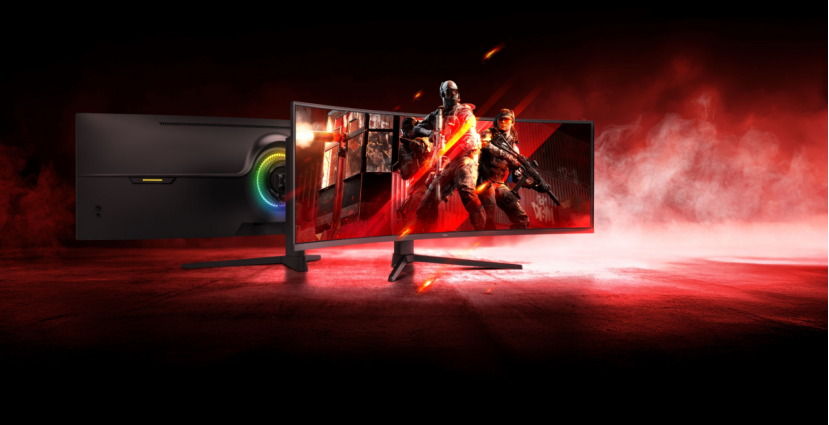
Consider the NPC-Q4986B-11, an ideal example of an NPC big gaming monitor engineered for flawless synchronization:
Specification | NPC-Q4986B-11 Detail |
Size & Curvature | 49-inch, 1500R Curved |
Resolution | Ultra-HD (5120x1440) VA Panel |
Refresh Rate | 165Hz / 240Hz (Overclocked) |
Response Time | 1ms |
VRR Technology | Supports Adaptive Sync Technology |
This monitor is built not just for immersion (thanks to its ultra-wide 49-inch curved panel) but for competitive speed, boasting a 1ms response time and high refresh rates. By incorporating Adaptive Sync technology directly into a robust hardware platform, NPC minimizes the flickering and LFC issues common with generic panels, offering reliable, tear-free gaming performance, even at its massive resolution.
About NPC:
Established in Guangzhou, China in 2005, NPC is a growing technology group specializing in the research, production, and global sales of high-definition display products and personal computer products. The company’s mission is to provide high-quality and affordable video display and IT computer products for the global market. With a diverse range of offerings including QLED smart TVs, laptops, all-in-one PCs, and a comprehensive line of gaming monitors, NPC is committed to continuous technological innovation and service improvement. Choosing an NPC gaming monitor means investing in reliable, cost-effective display solutions designed to elevate your gaming experience with features like high refresh rates, low response times, and dependable Adaptive Sync support.


