






If you’ve ever experienced a flickering screen while working, you know how distracting and uncomfortable it can be. As professionals who rely on technology daily, we understand how screen stability directly affects productivity and eye comfort. Whether you’re using a home setup or managing multiple large office monitor units, flickering issues are common but can be fixed easily. In this guide, we’ll share five quick solutions to help you restore a smooth viewing experience and keep your NPC display running perfectly.
1. Check the Cable Connection
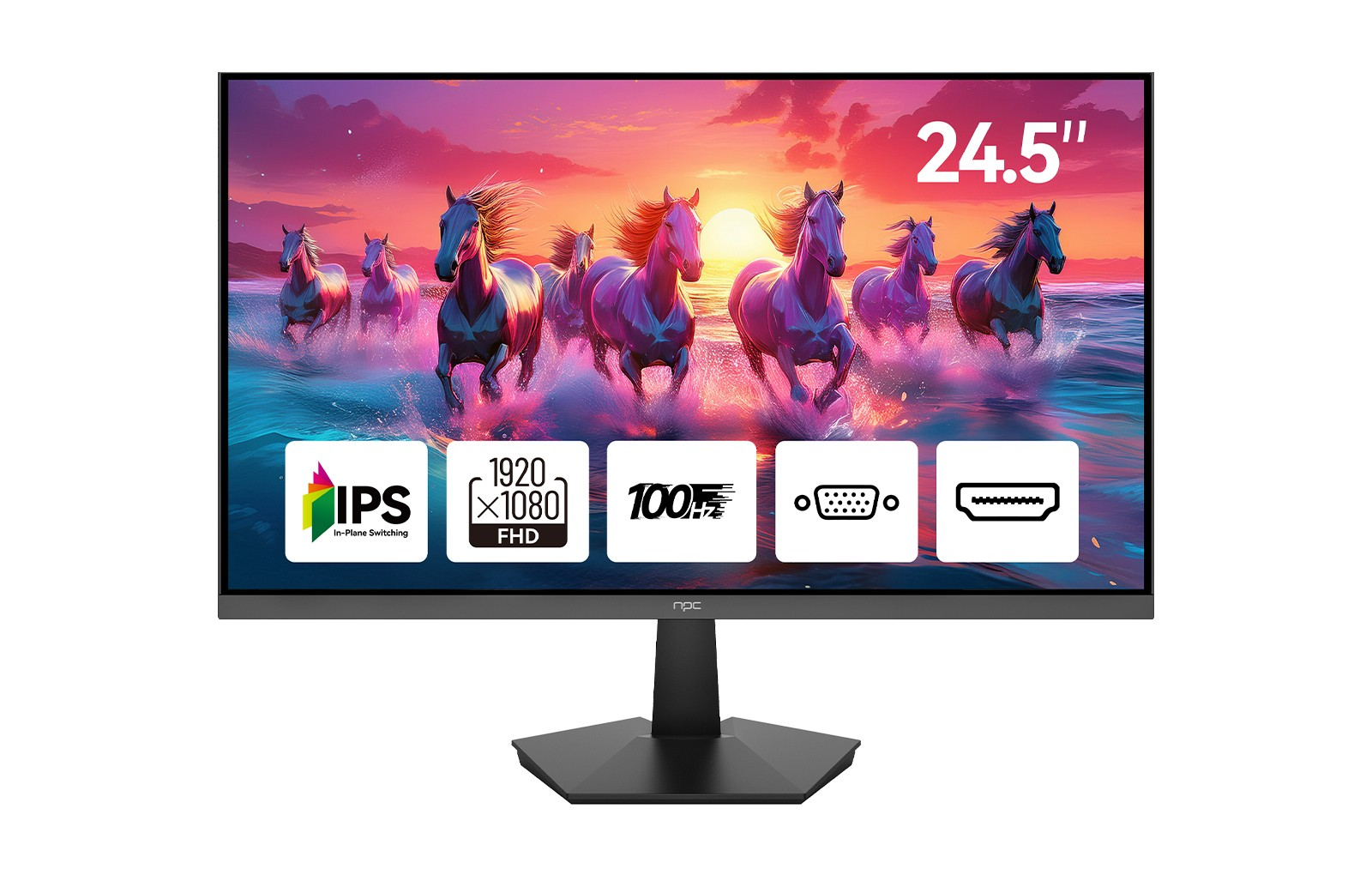
A loose or damaged cable is one of the most frequent causes of screen flickering. Ensure your HDMI or VGA cable is securely connected to both the conputers and your large office monitor. If possible, test the display with another cable to rule out cable damage. We often advise our clients to use high-quality cables to maintain a stable signal, especially when using NPC monitors that support Full HD output and 100Hz refresh rates.
2. Adjust the Refresh Rate
Another common cause of flicker is an incorrect refresh rate setting. For most office monitors, the ideal rate is between 60Hz and 100Hz. Modern displays, such as the NPC-MF2508-A, offer up to 100Hz, ensuring smooth visuals for both work and entertainment. To adjust this, go to your system display settings and select the optimal refresh rate. Doing so can significantly reduce visible flicker and provide a seamless screen experience, particularly on a large office monitor setup.
3. Update Graphics Drivers
Outdated or corrupted drivers can also cause instability in display output. Make sure your graphics drivers are up to date by checking your device manager or visiting your graphics card manufacturer’s website. Regular updates not only prevent flickering but also improve color accuracy and performance. We recommend pairing the latest drivers with a stable NPC display to ensure the best possible image consistency during extended work hours.
4. Adjust Brightness and Power Settings
Sometimes flickering happens due to inconsistent power delivery or overly high brightness levels. Try lowering the brightness slightly and disable adaptive brightness settings. For large office monitor installations, ensure that all power connections are stable and that surge protectors are used where necessary. Reliable power management will keep your NPC screens performing smoothly without sudden dimming or flickering.
5. Test with a Different Device
If flickering continues, connect your monitor to a different conputers or laptop. This test helps determine whether the issue lies with the monitor or the conputers itself. In our experience, NPC monitors like the NPC-MF2508-A perform consistently across devices due to their advanced IPS panel technology and broad compatibility with both VGA and HDMI inputs.
Conclusion: Reliable Visual Comfort with NPC
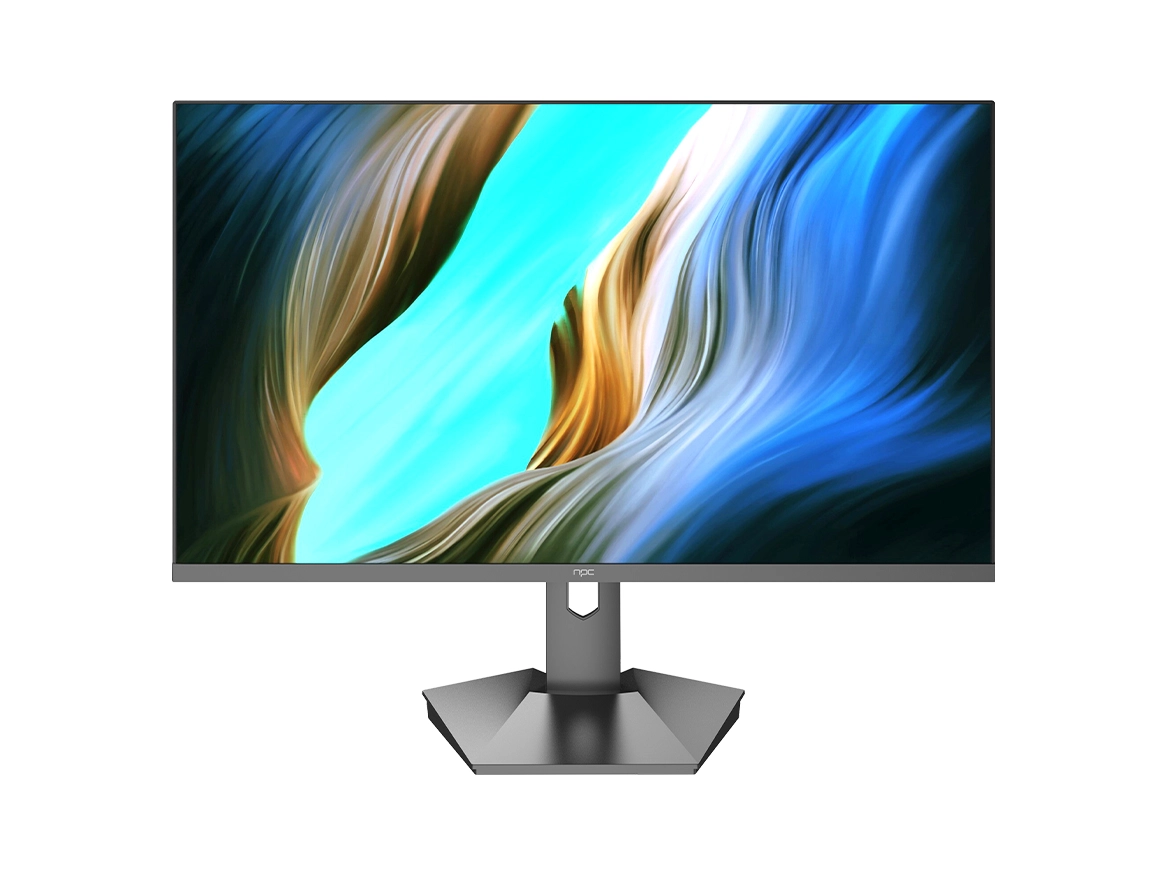
At NPC, we take display performance seriously. Our NPC-MF2508-A 24.5-inch Full HD monitor is designed with professionals in mind—featuring an ultra-thin frame, 97% sRGB color accuracy, and a smooth 100Hz refresh rate that minimizes flicker and strain. The IPS panel ensures clear viewing from any angle, while the VESA-compatible design makes it ideal for multi-screen large office monitor setups.
If you’re seeking a dependable monitor for business or personal use, NPC offers the perfect balance between performance, comfort, and design. Experience clearer visuals, reduced flicker, and enhanced productivity with our reliable display solutions.


