


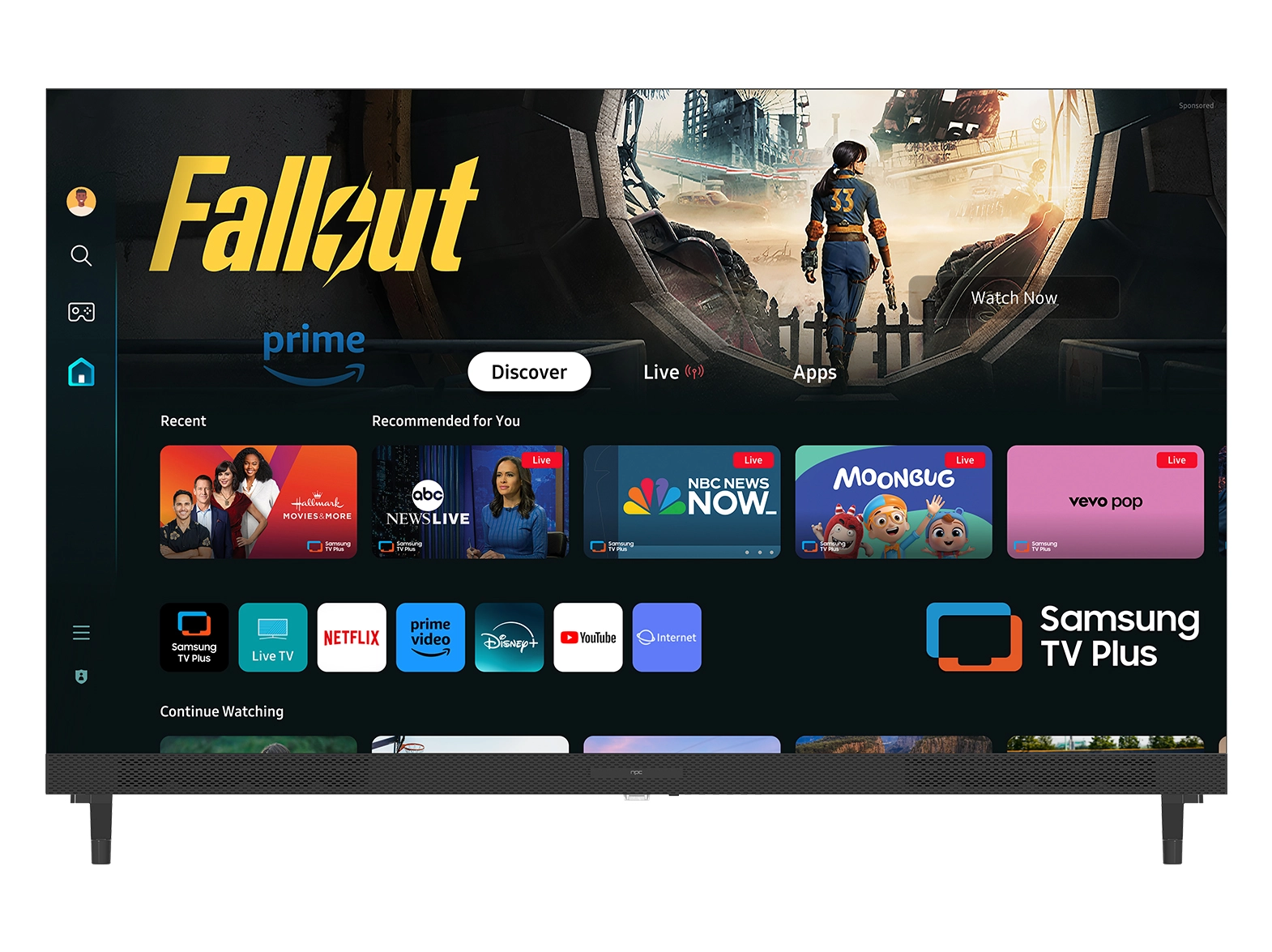




Getting the most from the LG Content Store is essential for unlocking the full potential of a modern 4K webOS smart TV. We at NPC know that for businesses supplying these displays, a well-configured app ecosystem is a major selling point for end-users. The LG Content Store is the gateway to a vast library of applications, but maximizing its selection requires a few key steps to ensure access to regional content, preferred streaming services, and utility apps. This guide will walk through the setup process for the LG Content Store, helping you advise your clients on how to fully leverage a 4K webOS smart TV for both entertainment and business applications.
Accessing the LG Content Store and Initial Setup
The first step to maximizing app selection is properly accessing the store on your 4K webOS smart TV. Upon powering on a model like the NPC-55N18G, the webOS home launcher bar will appear at the bottom of the screen. Navigating to the LG Content Store icon—typically represented by a shopping bag—is straightforward with the remote. After selecting it, the system may prompt for a network connection; a stable internet link is crucial for browsing and downloading apps smoothly. We recommend using a wired Ethernet connection or a strong Wi-Fi signal to avoid interruptions. This initial access is simple, but it forms the foundation for building a comprehensive app library on any 4K webOS smart TV, ensuring users can immediately begin personalizing their experience.
Navigating and Selecting the Right Applications
Once inside the LG Content Store, the intuitive interface of webOS makes navigation simple. Categories like "Top Free," "Entertainment," and "Lifestyle" help users quickly find popular apps like Netflix, YouTube, and Prime Video, which are essential for any 4K webOS smart TV. For businesses, it's important to note that some applications may have regional availability. To ensure maximum selection, guiding end-users to check their country settings in the TV's general menu is a good practice. A correct region setting unlocks locally relevant content, which significantly enhances the value of the 4K webOS smart TV. The AI-powered picture quality of the NPC-55N18G, which boosts content to near-4K resolution, means that every app, from streaming services to video conferencing tools, will benefit from superior clarity and color fidelity.
Managing and Organizing Your Installed Applications
After downloading applications, effective management is key to a seamless user experience. The webOS platform allows users to pin their most-used apps to the home launcher bar for instant access. This is particularly useful for a 4K webOS smart TV used in diverse settings, allowing users to create a customized interface tailored for either entertainment or business. Regularly checking the "My Apps" section within the LG Content Store for updates is also critical, as developers frequently release new features and performance improvements. These updates ensure that apps run optimally on the high-resolution display, taking full advantage of features like Dolby Vision HDR available on a 4K webOS smart TV like the NPC-55N18G for a truly cinematic experience.
In summary, setting up the LG Content Store is a straightforward process that dramatically expands the functionality of a 4K webOS smart TV. By ensuring proper initial access, selecting region-appropriate apps, and managing the interface effectively, users can create a highly personalized entertainment hub. We at NPC design our products to integrate seamlessly with this ecosystem. Our NPC-55N18G 4K webOS smart TV, with its QLED display, AI upscaling, and Dolby Vision compatibility, is engineered to deliver an exceptional experience across all applications available in the store. For wholesalers, traders, and OEMs, offering a 4K webOS smart TV from NPC means providing a product that combines a powerful operating system with superior picture quality, meeting the high demands of today's market.


