




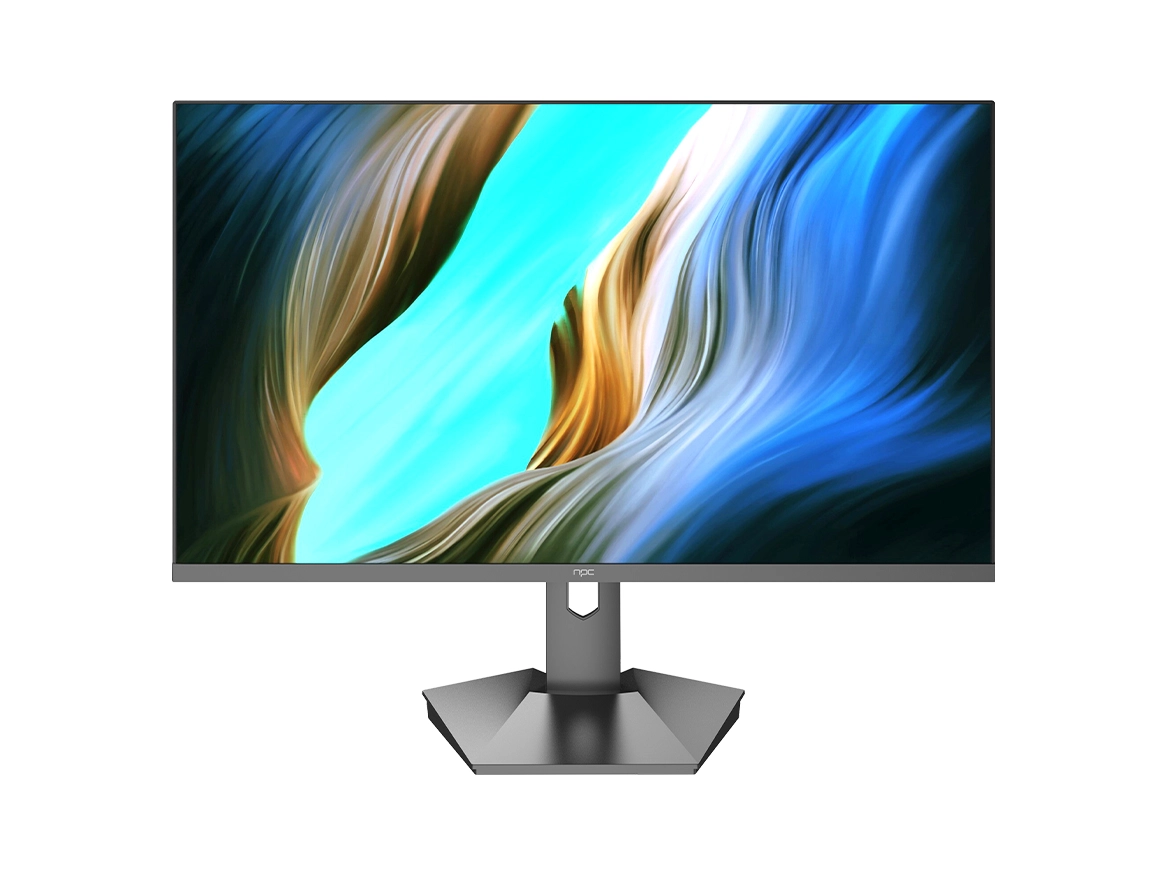


As a leader in gaming technology, NPC recognizes the pivotal role that a gaming 1080p monitor plays in achieving the ultimate gameplay experience. With our NPC-LCD2405, we provide a 23.8-inch IPS LCD monitor boasting a 1920x1080 resolution, ensuring that every gamer has the tools they need to excel. This powerful device was designed with gamers in mind, and we're excited to share how it can transform your virtual endeavors.
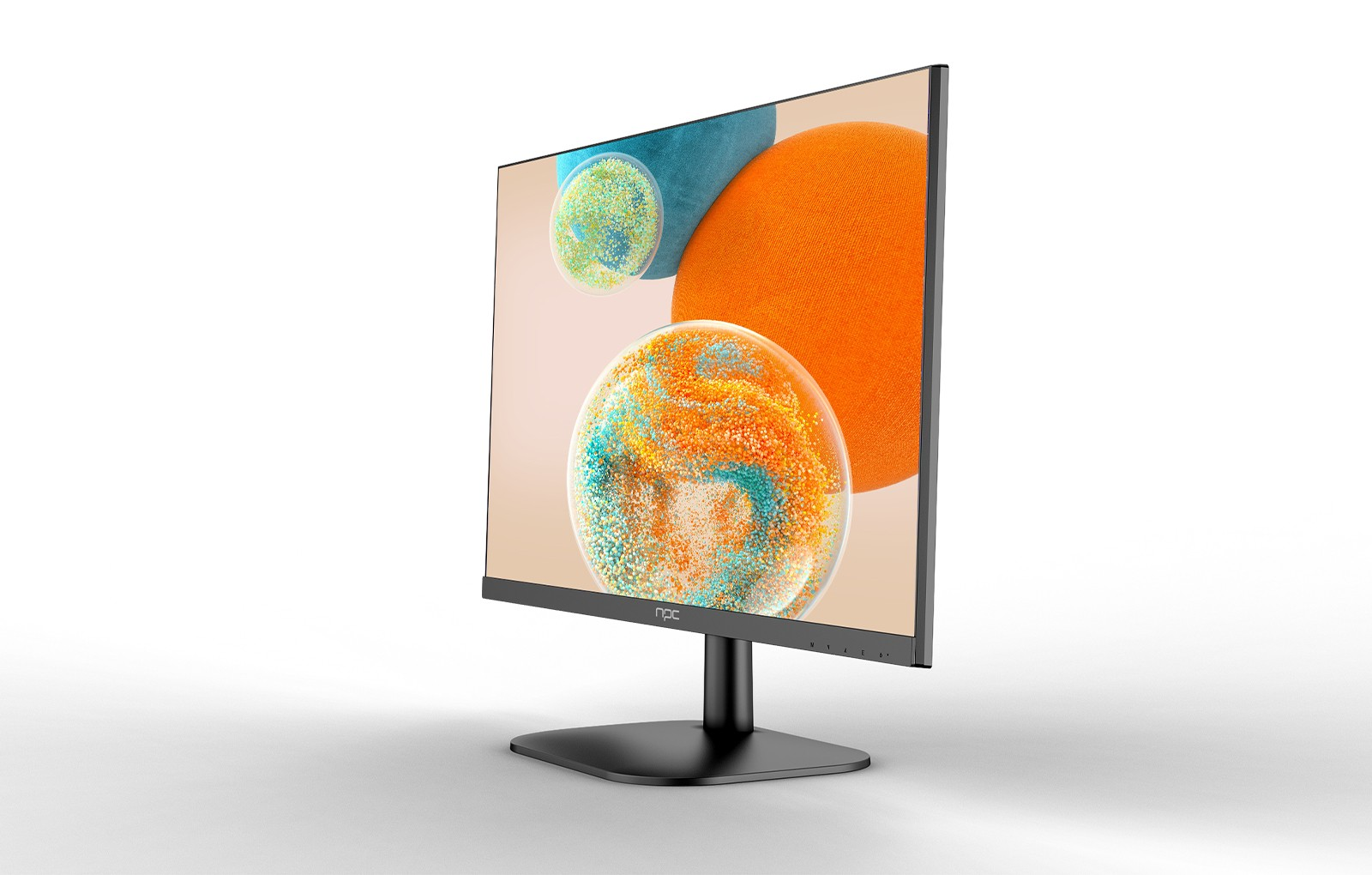
Setting up dual monitors for gaming can greatly enhance your gaming experience and productivity. When it comes to using gaming 1080p monitor for this purpose, there are several important factors to consider. NPC, a leading brand in the gaming industry, offers high-quality 1080p monitors that are perfect for setting up an ideal gaming setup. Let's explore the key steps and considerations.
Hardware Requirements and Preparation
First, ensure that your computer has the necessary graphics card capabilities to support dual monitors. A decent graphics card with multiple output ports is essential. Check the specifications of your gaming PC to make sure it can handle the increased load of running two monitors simultaneously. For gaming 1080p monitors, make sure they have compatible connections such as HDMI or DisplayPort. NPC's gaming 1080p monitors are designed with easy connectivity in mind, offering a variety of ports to ensure seamless setup.
Next, gather the necessary cables and mounts if needed. You'll need two monitor cables of the appropriate type for your monitors and computer ports. Consider using monitor stands or mounts to adjust the height and position of the monitors for optimal viewing angles. NPC provides accessories and options to help you customize your dual monitor setup for maximum comfort and functionality.
Configuring the Display Settings
Once you have your hardware set up, it's time to configure the display settings. Connect both monitors to your computer and turn them on. In your operating system's display settings, you should be able to detect the two monitors. Configure the resolution to 1080p for both monitors to ensure consistent image quality.
You can choose between different display modes such as extended mode, where each monitor acts as an extension of your desktop, or duplicate mode, which shows the same content on both monitors. For gaming, extended mode is often preferred as it gives you more screen real estate to display game information, chat windows, or other gaming-related applications. NPC's monitors come with user-friendly settings and options to make configuring the display settings a breeze.
Optimizing for Gaming Performance
To get the best gaming performance out of your dual monitor setup, make sure to adjust the in-game settings. Some games may require you to manually configure the display settings within the game to take full advantage of the dual monitors. For example, you can set the game to display the main gameplay on one monitor and use the other monitor for maps, inventory, or streaming overlays.
Also, consider the refresh rate and response time of your monitors. Gaming 1080p monitors from NPC offer excellent refresh rates and fast response times to ensure smooth gameplay. Make sure to enable any gaming-specific features such as AMD FreeSync or NVIDIA G-Sync if your monitors and graphics card support them to reduce screen tearing and stuttering.
Conclusion
Setting up dual monitors for gaming with gaming 1080p monitors can be a game-changer. By following the steps of preparing the hardware, configuring the display settings, and optimizing for gaming performance, you can help your clients create an immersive and productive gaming environment. NPC's high-quality gaming 1080p monitors, with their advanced features and easy setup options, are the perfect choice for building an outstanding dual monitor gaming setup. Choose NPC and take your gaming business to the next level.


